Docker 入门

初识 Docker

概念

虚拟机的出现使得 同一台物理机上实现多个操作系统(OS)运行不同 App 达到目的 成为可能

但是当虚拟机数量越来越多 或者所运行的 App 消耗的资源越来越大时 对物理机会产生极大消耗

为了使得系统性能不被多个虚拟机中的 OS 所消耗,容器技术(Container)应运而生

与虚拟机不同,容器技术依赖容器支持层,创建多个容器,用以运行多个 App

优点是极大地降低了资源消耗,同时形成多个虚拟机的效果,其中最流行的容器技术就是 Docker

Docker 的特点

  • 基于 Linux 实现的虚拟技术
  • 依据进程隔离实现的
  • 体积小、占用资源少
  • 启动快

作用

  • 用于解决软件开发中的环境配置,作用类似于 Python 的虚拟环境

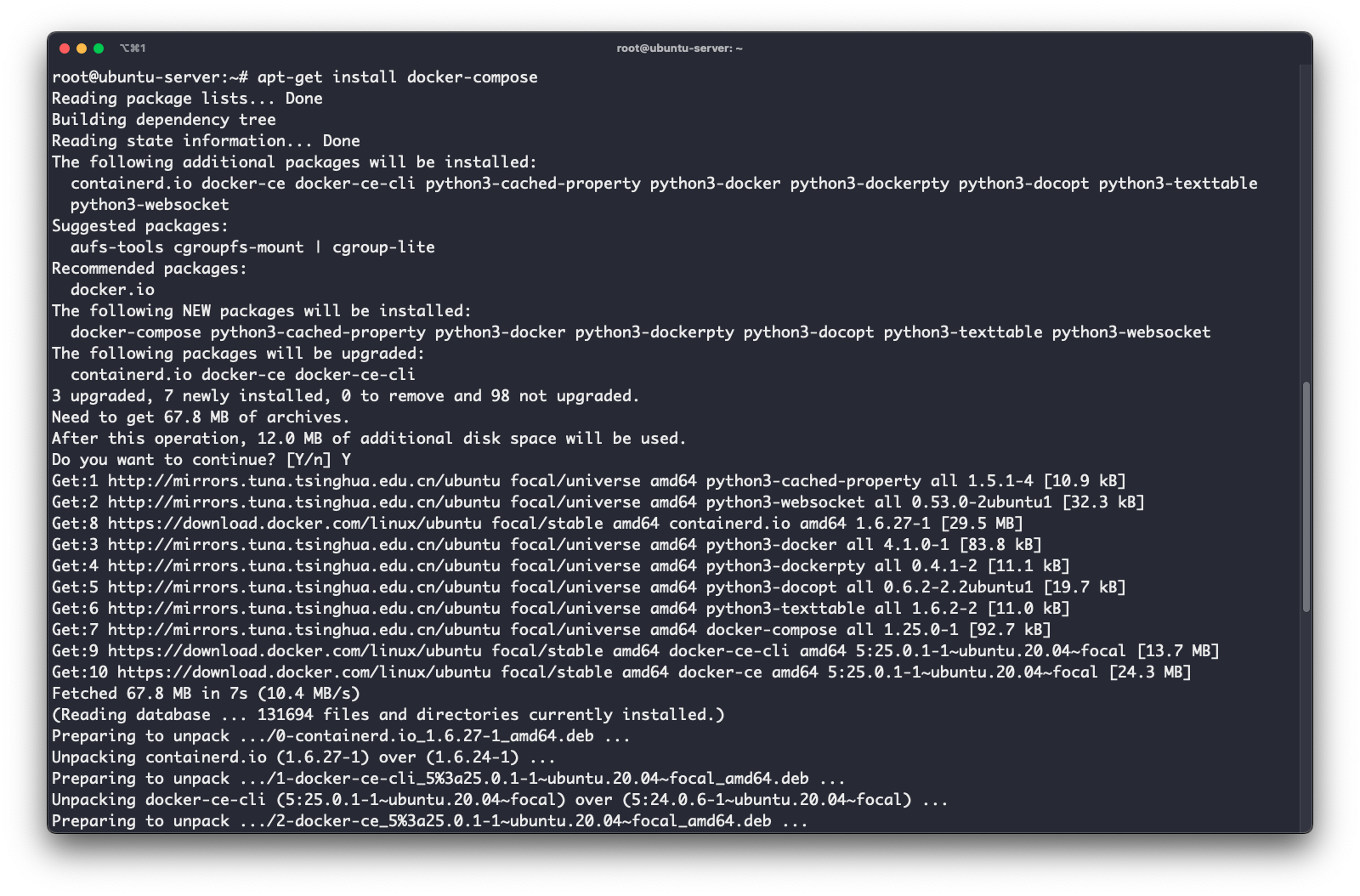
安装

1
2
root@ubuntu-server:~# docker -v
Docker version 24.0.6, build ed223bc
  • 显示 docker 详细信息 docker info
1
2
3
4
5
6
7
8
9
10
11
12
root@ubuntu-server:/# docker info
Client: Docker Engine - Community
Version: 24.0.6
Context: default
Debug Mode: false
Plugins:
buildx: Docker Buildx (Docker Inc.)
Version: v0.11.2
Path: /usr/libexec/docker/cli-plugins/docker-buildx
compose: Docker Compose (Docker Inc.)
Version: v2.21.0
Path: /usr/libexec/docker/cli-plugins/docker-compose
  • 查看 docker 运行状态 systemctl status docker
1
2
3
4
5
6
7
8
9
10
11
12
13
14
15
16
17
18
19
20
21
22
23
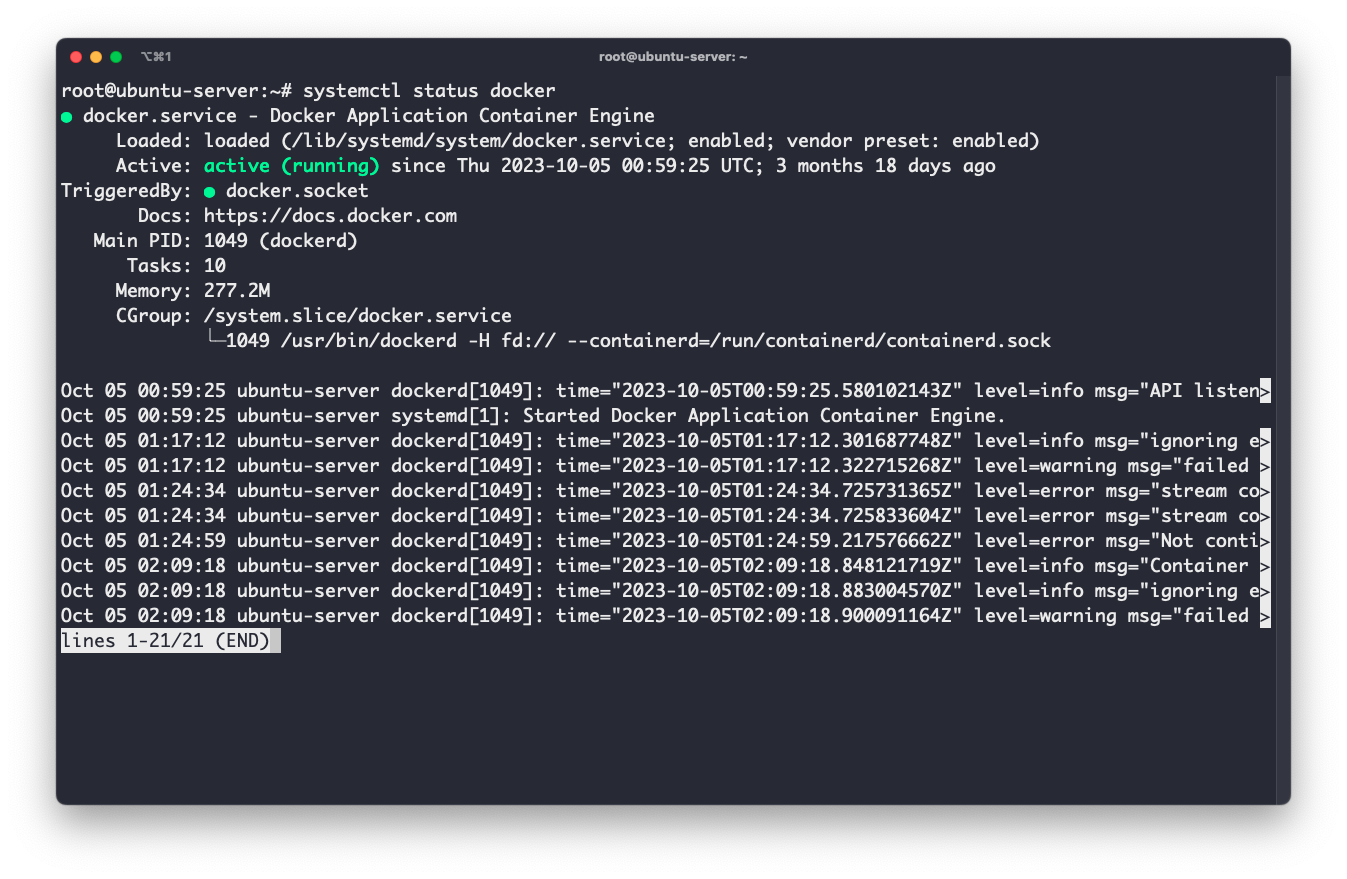
root@ubuntu-server:~# systemctl status docker
● docker.service - Docker Application Container Engine
Loaded: loaded (/lib/systemd/system/docker.service; enabled; vendor preset: enabled)
Active: active (running) since Thu 2023-10-05 00:59:25 UTC; 3 months 18 days ago
TriggeredBy: ● docker.socket
Docs: https://docs.docker.com
Main PID: 1049 (dockerd)
Tasks: 10
Memory: 277.2M
CGroup: /system.slice/docker.service
└─1049 /usr/bin/dockerd -H fd:// --containerd=/run/containerd/containerd.sock

Oct 05 00:59:25 ubuntu-server dockerd[1049]: time="2023-10-05T00:59:25.580102143Z" level=info msg="API listen>
Oct 05 00:59:25 ubuntu-server systemd[1]: Started Docker Application Container Engine.
Oct 05 01:17:12 ubuntu-server dockerd[1049]: time="2023-10-05T01:17:12.301687748Z" level=info msg="ignoring e>
Oct 05 01:17:12 ubuntu-server dockerd[1049]: time="2023-10-05T01:17:12.322715268Z" level=warning msg="failed >
Oct 05 01:24:34 ubuntu-server dockerd[1049]: time="2023-10-05T01:24:34.725731365Z" level=error msg="stream co>
Oct 05 01:24:34 ubuntu-server dockerd[1049]: time="2023-10-05T01:24:34.725833604Z" level=error msg="stream co>
Oct 05 01:24:59 ubuntu-server dockerd[1049]: time="2023-10-05T01:24:59.217576662Z" level=error msg="Not conti>
Oct 05 02:09:18 ubuntu-server dockerd[1049]: time="2023-10-05T02:09:18.848121719Z" level=info msg="Container >
Oct 05 02:09:18 ubuntu-server dockerd[1049]: time="2023-10-05T02:09:18.883004570Z" level=info msg="ignoring e>
Oct 05 02:09:18 ubuntu-server dockerd[1049]: time="2023-10-05T02:09:18.900091164Z" level=warning msg="failed >
lines 1-21/21 (END)

  • 设置 docker 开机自启动 systemctl enable docker

Docker 运行

最初,刚安装好 docker 的机器不存在镜像因此没办法运行

运行docker run hello-world的效果如下,由于设备上还没有拉取任何镜像,因此是从 library 上拉取的

1
2
3
4
5
6
7
8
9
10
11
12
13
14
15
16
17
18
19
20
21
22
23
24
25
26
27
root@ubuntu-server:~# docker run hello-world
Unable to find image 'hello-world:latest' locally
latest: Pulling from library/hello-world
c1ec31eb5944: Pull complete
Digest: sha256:4bd78111b6914a99dbc560e6a20eab57ff6655aea4a80c50b0c5491968cbc2e6
Status: Downloaded newer image for hello-world:latest

Hello from Docker!
This message shows that your installation appears to be working correctly.

To generate this message, Docker took the following steps:
1. The Docker client contacted the Docker daemon.
2. The Docker daemon pulled the "hello-world" image from the Docker Hub.
(amd64)
3. The Docker daemon created a new container from that image which runs the
executable that produces the output you are currently reading.
4. The Docker daemon streamed that output to the Docker client, which sent it
to your terminal.

To try something more ambitious, you can run an Ubuntu container with:
$ docker run -it ubuntu bash

Share images, automate workflows, and more with a free Docker ID:
https://hub.docker.com/

For more examples and ideas, visit:
https://docs.docker.com/get-started/

启动容器

  • docker run [镜像名称],若该镜像不存在 则会默认拉取最新的
1
2
3
4
5
6
7
8
9
10
11
12
13
14
15
16
17
18
19
20
21
22
23
24
25
26
27
28
29
30
31
32
33
34
35
36
37
38
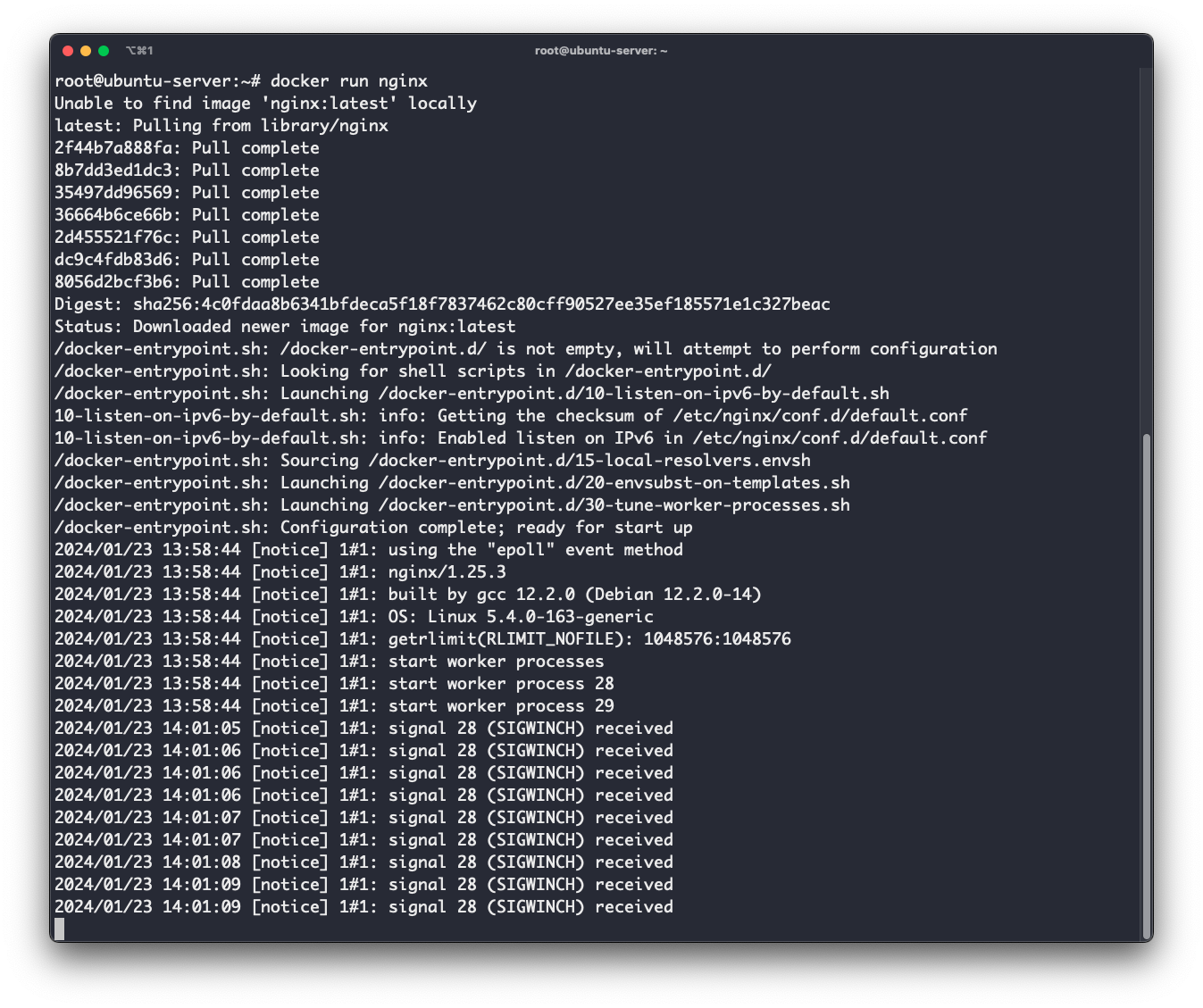
root@ubuntu-server:~# docker run nginx
Unable to find image 'nginx:latest' locally
latest: Pulling from library/nginx
2f44b7a888fa: Pull complete
8b7dd3ed1dc3: Pull complete
35497dd96569: Pull complete
36664b6ce66b: Pull complete
2d455521f76c: Pull complete
dc9c4fdb83d6: Pull complete
8056d2bcf3b6: Pull complete
Digest: sha256:4c0fdaa8b6341bfdeca5f18f7837462c80cff90527ee35ef185571e1c327beac
Status: Downloaded newer image for nginx:latest
/docker-entrypoint.sh: /docker-entrypoint.d/ is not empty, will attempt to perform configuration
/docker-entrypoint.sh: Looking for shell scripts in /docker-entrypoint.d/
/docker-entrypoint.sh: Launching /docker-entrypoint.d/10-listen-on-ipv6-by-default.sh
10-listen-on-ipv6-by-default.sh: info: Getting the checksum of /etc/nginx/conf.d/default.conf
10-listen-on-ipv6-by-default.sh: info: Enabled listen on IPv6 in /etc/nginx/conf.d/default.conf
/docker-entrypoint.sh: Sourcing /docker-entrypoint.d/15-local-resolvers.envsh
/docker-entrypoint.sh: Launching /docker-entrypoint.d/20-envsubst-on-templates.sh
/docker-entrypoint.sh: Launching /docker-entrypoint.d/30-tune-worker-processes.sh
/docker-entrypoint.sh: Configuration complete; ready for start up
2024/01/23 13:58:44 [notice] 1#1: using the "epoll" event method
2024/01/23 13:58:44 [notice] 1#1: nginx/1.25.3
2024/01/23 13:58:44 [notice] 1#1: built by gcc 12.2.0 (Debian 12.2.0-14)
2024/01/23 13:58:44 [notice] 1#1: OS: Linux 5.4.0-163-generic
2024/01/23 13:58:44 [notice] 1#1: getrlimit(RLIMIT_NOFILE): 1048576:1048576
2024/01/23 13:58:44 [notice] 1#1: start worker processes
2024/01/23 13:58:44 [notice] 1#1: start worker process 28
2024/01/23 13:58:44 [notice] 1#1: start worker process 29
2024/01/23 14:01:05 [notice] 1#1: signal 28 (SIGWINCH) received
2024/01/23 14:01:06 [notice] 1#1: signal 28 (SIGWINCH) received
2024/01/23 14:01:07 [notice] 1#1: signal 28 (SIGWINCH) received
2024/01/23 14:01:08 [notice] 1#1: signal 28 (SIGWINCH) received
2024/01/23 14:01:09 [notice] 1#1: signal 28 (SIGWINCH) received

会启动一个 nginx 服务,并且等待着

查看当前容器

  • docker ps 查看正在运行中的或者创建了的容器
  • docker ps -a 查看所有容器
1
2
3
4
5
6
7
8
9
root@ubuntu-server:~# docker ps
CONTAINER ID IMAGE COMMAND CREATED STATUS PORTS NAMES
8e1148f9c025 nginx "/docker-entrypoint.…" 6 minutes ago Up 6 minutes 80/tcp reverent_wozniak
root@ubuntu-server:~#
root@ubuntu-server:~# docker ps -a
CONTAINER ID IMAGE COMMAND CREATED STATUS PORTS NAMES
8e1148f9c025 nginx "/docker-entrypoint.…" 6 minutes ago Up 6 minutes 80/tcp reverent_wozniak
2d987d559739 hello-world "/hello" 30 minutes ago Exited (0) 30 minutes ago loving_lehmann
root@ubuntu-server:~#
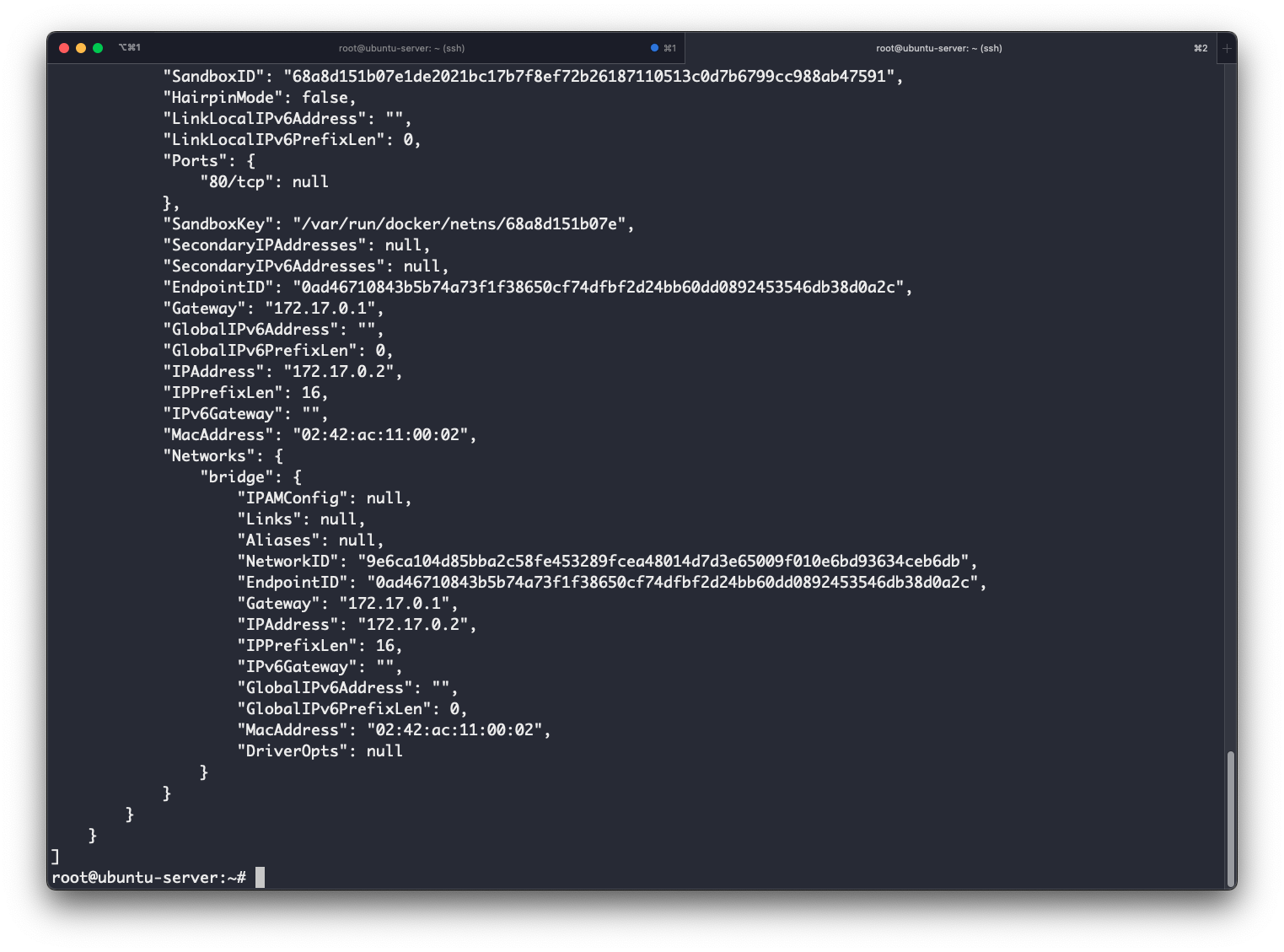
  • docker inspect [容器ID],查看容器的信息
1
2
3
4
5
6
7
8
9
10
11
12
13
14
15
16
17
18
19
20
21
22
23
24
25
26
root@ubuntu-server:~# docker inspect 8e1148f9c025
[
{
"Id": "8e1148f9c02527e90a80ca1f783404ffeb0b22e87a7d3331fef40354ca237c80",
"Created": "2024-01-23T13:58:44.354388314Z",
"Path": "/docker-entrypoint.sh",
"Args": [
"nginx",
"-g",
"daemon off;"
],
"State": {
"Status": "running",
"Running": true,
"Paused": false,
"Restarting": false,
"OOMKilled": false,
"Dead": false,
"Pid": 60563,
"ExitCode": 0,
"Error": "",
"StartedAt": "2024-01-23T13:58:44.664498639Z",
"FinishedAt": "0001-01-01T00:00:00Z"
},
"Image": "sha256:a8758716bb6aa4d90071160d27028fe4eaee7ce8166221a97d30440c8eac2be6",
...

  • curl http://[IpAddress]:[Ports]访问该 nginx 服务
1
2
3
4
5
6
7
8
9
10
11
12
13
14
15
16
17
18
19
20
21
22
23
24
25
26
27
28
29
root@ubuntu-server:~# curl http://172.17.0.2:80
curl: (7) Failed to connect to 172.17.0.2 port 80: Connection refused

root@ubuntu-server:~# curl http://127.0.0.1:80
<!DOCTYPE html>
<html>
<head>
<title>Welcome to nginx!</title>
<style>
body {
width: 35em;
margin: 0 auto;
font-family: Tahoma, Verdana, Arial, sans-serif;
}
</style>
</head>
<body>
<h1>Welcome to nginx!</h1>
<p>If you see this page, the nginx web server is successfully installed and
working. Further configuration is required.</p>

<p>For online documentation and support please refer to
<a href="http://nginx.org/">nginx.org</a>.<br/>
Commercial support is available at
<a href="http://nginx.com/">nginx.com</a>.</p>

<p><em>Thank you for using nginx.</em></p>
</body>
</html>

这时候 我出现了一个问题,通过 IPAddress 访问不到,但是通过容器内部可以访问到,并且 ping 不通 172.17.0.2,解决方法如下

1
2
3
4
5
6
7
8
9
10
11
12
13
14
15
16
17
18
19
20
21
22
23
24
25
26
27
28
29
30
31
32
33
34
35
36
37
root@ubuntu-server:/# cd /etc/docker/
root@ubuntu-server:/etc/docker# nano daemon.json
root@ubuntu-server:/etc/docker# cat daemon.json
{
"bip":"172.17.0.1/24"
}

root@ubuntu-server:/etc/docker# ps -ef | grep dockerd
root 66939 64105 0 15:14 pts/0 00:00:00 dockerd
root 67596 64105 0 15:21 pts/0 00:00:00 grep --color=auto dockerd

root@ubuntu-server:/etc/docker# kill -9 66939

root@ubuntu-server:/etc/docker# sudo systemctl stop docker && sudo systemctl disable docker
Warning: Stopping docker.service, but it can still be activated by:
docker.socket
[1]+ Killed dockerd
Synchronizing state of docker.service with SysV service script with /lib/systemd/systemd-sysv-install.
Executing: /lib/systemd/systemd-sysv-install disable docker

root@ubuntu-server:/etc/docker# ip link set dev docker0 down

root@ubuntu-server:~# dockerd &
[2] 68637
root@ubuntu-server:~# INFO[2024-01-23T15:28:54.176224866Z] Starting up
INFO[2024-01-23T15:28:54.177656625Z] detected 127.0.0.53 nameserver, assuming systemd-resolved, so using resolv.conf: /run/systemd/resolve/resolv.conf
INFO[2024-01-23T15:28:54.205339444Z] [graphdriver] using prior storage driver: overlay2
INFO[2024-01-23T15:28:54.207603223Z] Loading containers: start.
INFO[2024-01-23T15:28:54.420248892Z] Loading containers: done.
WARN[2024-01-23T15:28:54.435812794Z] WARNING: No swap limit support
INFO[2024-01-23T15:28:54.436013678Z] Docker daemon commit=1a79695 graphdriver=overlay2 version=24.0.6
INFO[2024-01-23T15:28:54.436353042Z] Daemon has completed initialization
INFO[2024-01-23T15:28:54.462870900Z] API listen on /var/run/docker.sock

root@ubuntu-server:~# ps -ef | grep dockerd
root 68637 64105 0 15:28 pts/0 00:00:00 dockerd
root 68836 64105 0 15:30 pts/0 00:00:00 grep --color=auto dockerd

之后尝试重新创建一个 nginx 容器

1
2
3
4
5
6
7
8
9
10
11
12
13
14
15
16
17
18
root@ubuntu-server:~# docker run nginx
/docker-entrypoint.sh: /docker-entrypoint.d/ is not empty, will attempt to perform configuration
/docker-entrypoint.sh: Looking for shell scripts in /docker-entrypoint.d/
/docker-entrypoint.sh: Launching /docker-entrypoint.d/10-listen-on-ipv6-by-default.sh
10-listen-on-ipv6-by-default.sh: info: Getting the checksum of /etc/nginx/conf.d/default.conf
10-listen-on-ipv6-by-default.sh: info: Enabled listen on IPv6 in /etc/nginx/conf.d/default.conf
/docker-entrypoint.sh: Sourcing /docker-entrypoint.d/15-local-resolvers.envsh
/docker-entrypoint.sh: Launching /docker-entrypoint.d/20-envsubst-on-templates.sh
/docker-entrypoint.sh: Launching /docker-entrypoint.d/30-tune-worker-processes.sh
/docker-entrypoint.sh: Configuration complete; ready for start up
2024/01/23 15:31:01 [notice] 1#1: using the "epoll" event method
2024/01/23 15:31:01 [notice] 1#1: nginx/1.25.3
2024/01/23 15:31:01 [notice] 1#1: built by gcc 12.2.0 (Debian 12.2.0-14)
2024/01/23 15:31:01 [notice] 1#1: OS: Linux 5.4.0-163-generic
2024/01/23 15:31:01 [notice] 1#1: getrlimit(RLIMIT_NOFILE): 1048576:1048576
2024/01/23 15:31:01 [notice] 1#1: start worker processes
2024/01/23 15:31:01 [notice] 1#1: start worker process 29
2024/01/23 15:31:01 [notice] 1#1: start worker process 30

然后使用curl http://172.17.0.2:80运行一下

1
2
3
4
5
6
7
8
9
10
11
12
13
14
15
16
17
18
19
20
21
22
23
24
25
26
27
28
29
30
31
32
33
34
35
36
37
38
39
40
41
42
43
44
45
46
47
48
49
50
51
52
53
54
55
root@ubuntu-server:~# docker ps -a
CONTAINER ID IMAGE COMMAND CREATED STATUS PORTS NAMES
9db02b830360 nginx "/docker-entrypoint.…" 11 seconds ago Up 10 seconds 80/tcp heuristic_swanson
2d987d559739 hello-world "/hello" 2 hours ago Exited (0) 2 hours ago loving_lehmann
root@ubuntu-server:~# docker inspect 9db02b830360
[
{
"Id": "9db02b830360af059797b0b17c9fb043c46d468aa9d4ac7edd4e1dbb0bcc5536",
"Created": "2024-01-23T15:31:01.321227908Z",
"Path": "/docker-entrypoint.sh",
"Args": [
"nginx",
"-g",
"daemon off;"
],
"State": {
"Status": "running",
"Running": true,
"Paused": false,
"Restarting": false,
"OOMKilled": false,
"Dead": false,
"Pid": 68908,
"ExitCode": 0,
"Error": "",
"StartedAt": "2024-01-23T15:31:01.62045826Z",
"FinishedAt": "0001-01-01T00:00:00Z"
},
"Image": "sha256:a8758716bb6aa4d90071160d27028fe4eaee7ce8166221a97d30440c8eac2be6",
...

root@ubuntu-server:~# curl http://172.17.0.2:80
<!DOCTYPE html>
<html>
<head>
<title>Welcome to nginx!</title>
<style>
html { color-scheme: light dark; }
body { width: 35em; margin: 0 auto;
font-family: Tahoma, Verdana, Arial, sans-serif; }
</style>
</head>
<body>
<h1>Welcome to nginx!</h1>
<p>If you see this page, the nginx web server is successfully installed and
working. Further configuration is required.</p>

<p>For online documentation and support please refer to
<a href="http://nginx.org/">nginx.org</a>.<br/>
Commercial support is available at
<a href="http://nginx.com/">nginx.com</a>.</p>

<p><em>Thank you for using nginx.</em></p>
</body>
</html>

并且在另一边的 nginx 服务上可以看到访问

1
2
3
4
5
6
7
8
9
10
11
12
13
14
15
16
17
18
19
root@ubuntu-server:~# docker run nginx
/docker-entrypoint.sh: /docker-entrypoint.d/ is not empty, will attempt to perform configuration
/docker-entrypoint.sh: Looking for shell scripts in /docker-entrypoint.d/
/docker-entrypoint.sh: Launching /docker-entrypoint.d/10-listen-on-ipv6-by-default.sh
10-listen-on-ipv6-by-default.sh: info: Getting the checksum of /etc/nginx/conf.d/default.conf
10-listen-on-ipv6-by-default.sh: info: Enabled listen on IPv6 in /etc/nginx/conf.d/default.conf
/docker-entrypoint.sh: Sourcing /docker-entrypoint.d/15-local-resolvers.envsh
/docker-entrypoint.sh: Launching /docker-entrypoint.d/20-envsubst-on-templates.sh
/docker-entrypoint.sh: Launching /docker-entrypoint.d/30-tune-worker-processes.sh
/docker-entrypoint.sh: Configuration complete; ready for start up
2024/01/23 15:31:01 [notice] 1#1: using the "epoll" event method
2024/01/23 15:31:01 [notice] 1#1: nginx/1.25.3
2024/01/23 15:31:01 [notice] 1#1: built by gcc 12.2.0 (Debian 12.2.0-14)
2024/01/23 15:31:01 [notice] 1#1: OS: Linux 5.4.0-163-generic
2024/01/23 15:31:01 [notice] 1#1: getrlimit(RLIMIT_NOFILE): 1048576:1048576
2024/01/23 15:31:01 [notice] 1#1: start worker processes
2024/01/23 15:31:01 [notice] 1#1: start worker process 29
2024/01/23 15:31:01 [notice] 1#1: start worker process 30
172.17.0.1 - - [23/Jan/2024:15:31:41 +0000] "GET / HTTP/1.1" 200 615 "-" "curl/7.68.0" "-"

停止与删除容器

  • docker stop [容器ID] 停止一个容器
  • docker <container> rm [容器ID]/[容器名:Tag] 删除一个容器,一个容器必须先停止了 才能被删除
  • docker run --rm [容器名称]创建一个容器,容器停止时自动删除
  • docker container prune删除所有已经停止的容器
1
2
3
4
5
6
7
8
9
10
11
12
13
14
15
16
root@ubuntu-server:~# docker ps -a
CONTAINER ID IMAGE COMMAND CREATED STATUS PORTS NAMES
9db02b830360 nginx "/docker-entrypoint.…" About an hour ago Up About an hour 80/tcp heuristic_swanson
2d987d559739 hello-world "/hello" 3 hours ago Exited (0) 3 hours ago loving_lehmann
root@ubuntu-server:~# docker stop 9db02b830360
9db02b830360
root@ubuntu-server:~# docker ps -a
CONTAINER ID IMAGE COMMAND CREATED STATUS PORTS NAMES
9db02b830360 nginx "/docker-entrypoint.…" About an hour ago Exited (0) 3 seconds ago heuristic_swanson
2d987d559739 hello-world "/hello" 3 hours ago Exited (0) 3 hours ago loving_lehmann
root@ubuntu-server:~# docker rm 9db02b830360
9db02b830360
root@ubuntu-server:~# docker ps -a
CONTAINER ID IMAGE COMMAND CREATED STATUS PORTS NAMES
2d987d559739 hello-world "/hello" 3 hours ago Exited (0) 3 hours ago loving_lehmann
root@ubuntu-server:~#

启动指定 Image 版本容器

  • docker run [镜像名称] 默认表示最新版本的镜像
  • docker run [镜像名称]:[版本号] 使用版本号指定的镜像
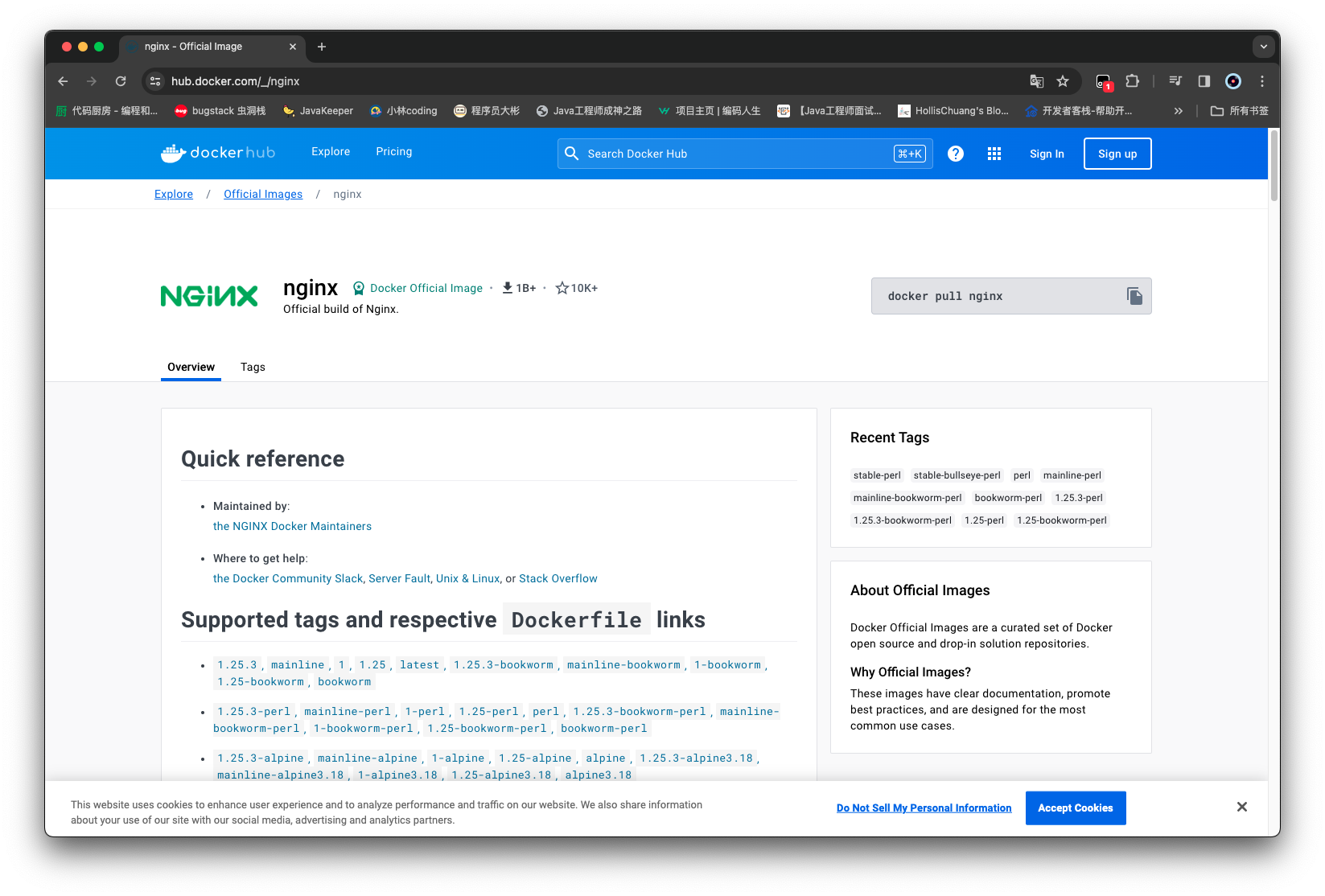
  • 查看官方维护的镜像版本号 https://hub.docker.com/

1
2
3
4
5
6
7
8
9
10
11
12
13
14
15
16
17
18
19
20
21
22
23
24
25
26
27
root@ubuntu-server:~# docker run nginx:1.24.0
Unable to find image 'nginx:1.24.0' locally
1.24.0: Pulling from library/nginx
0e0969fcaa82: Pull complete
9cfddd3151d4: Pull complete
0a14c9c58a70: Pull complete
46aff079cc60: Pull complete
93498c6629aa: Pull complete
a67e21d7eabc: Pull complete
Digest: sha256:401bc2c812345a6c64a0fd5504db5e8b511c7c8e62855a827c57944280835703
Status: Downloaded newer image for nginx:1.24.0
/docker-entrypoint.sh: /docker-entrypoint.d/ is not empty, will attempt to perform configuration
/docker-entrypoint.sh: Looking for shell scripts in /docker-entrypoint.d/
/docker-entrypoint.sh: Launching /docker-entrypoint.d/10-listen-on-ipv6-by-default.sh
10-listen-on-ipv6-by-default.sh: info: Getting the checksum of /etc/nginx/conf.d/default.conf
10-listen-on-ipv6-by-default.sh: info: Enabled listen on IPv6 in /etc/nginx/conf.d/default.conf
/docker-entrypoint.sh: Launching /docker-entrypoint.d/20-envsubst-on-templates.sh
/docker-entrypoint.sh: Launching /docker-entrypoint.d/30-tune-worker-processes.sh
/docker-entrypoint.sh: Configuration complete; ready for start up
2024/01/23 17:10:12 [notice] 1#1: using the "epoll" event method
2024/01/23 17:10:12 [notice] 1#1: nginx/1.24.0
2024/01/23 17:10:12 [notice] 1#1: built by gcc 10.2.1 20210110 (Debian 10.2.1-6)
2024/01/23 17:10:12 [notice] 1#1: OS: Linux 5.4.0-163-generic
2024/01/23 17:10:12 [notice] 1#1: getrlimit(RLIMIT_NOFILE): 1048576:1048576
2024/01/23 17:10:12 [notice] 1#1: start worker processes
2024/01/23 17:10:12 [notice] 1#1: start worker process 29
2024/01/23 17:10:12 [notice] 1#1: start worker process 30

其他的一些操作比如容器的停止与删除等都与之前一致

1
2
3
4
5
6
7
8
9
10
11
12
13
14
15
16
17
18
19
20
21
22
23
24
25
26
27
28
29
30
31
32
33
34
35
36
37
38
root@ubuntu-server:~# curl http://172.17.0.2:80
<!DOCTYPE html>
<html>
<head>
<title>Welcome to nginx!</title>
<style>
html { color-scheme: light dark; }
body { width: 35em; margin: 0 auto;
font-family: Tahoma, Verdana, Arial, sans-serif; }
</style>
</head>
<body>
<h1>Welcome to nginx!</h1>
<p>If you see this page, the nginx web server is successfully installed and
working. Further configuration is required.</p>

<p>For online documentation and support please refer to
<a href="http://nginx.org/">nginx.org</a>.<br/>
Commercial support is available at
<a href="http://nginx.com/">nginx.com</a>.</p>

<p><em>Thank you for using nginx.</em></p>
</body>
</html>
root@ubuntu-server:~# docker ps -a
CONTAINER ID IMAGE COMMAND CREATED STATUS PORTS NAMES
b29d1d06802e nginx:1.24.0 "/docker-entrypoint.…" 4 minutes ago Up 4 minutes 80/tcp eloquent_bartik
2d987d559739 hello-world "/hello" 4 hours ago Exited (0) 4 hours ago loving_lehmann
root@ubuntu-server:~# docker rm b29d1d06802e
Error response from daemon: You cannot remove a running container b29d1d06802ef51cf29a0f2fcf966f5b0b98f2d10781fe9a6b73663e2e001e08. Stop the container before attempting removal or force remove
root@ubuntu-server:~# docker stop b29d1d06802e
INFO[2024-01-23T17:14:43.920238667Z] ignoring event container=b29d1d06802ef51cf29a0f2fcf966f5b0b98f2d10781fe9a6b73663e2e001e08 module=libcontainerd namespace=moby topic=/tasks/delete type="*events.TaskDelete"
b29d1d06802e
root@ubuntu-server:~# docker rm b29d1d06802e
b29d1d06802e
root@ubuntu-server:~# docker ps -a
CONTAINER ID IMAGE COMMAND CREATED STATUS PORTS NAMES
2d987d559739 hello-world "/hello" 4 hours ago Exited (0) 4 hours ago loving_lehmann

创建交互式终端容器

  • docker run -it <--name=[容器名称]> [镜像名称]<:[版本号]> 启动后可在控制台打印输出与获取输入
  • docker run -it <--name=[容器名称]> [镜像名称]<:[版本号]> bash 启动后直接进入交互终端
  • exit退出交互式终端
1
2
3
4
5
6
7
8
9
10
11
12
13
14
15
16
17
18
19
20
21
22
23
24
25
root@ubuntu-server:~# docker run -it --name=nginx_test1 nginx
/docker-entrypoint.sh: /docker-entrypoint.d/ is not empty, will attempt to perform configuration
/docker-entrypoint.sh: Looking for shell scripts in /docker-entrypoint.d/
/docker-entrypoint.sh: Launching /docker-entrypoint.d/10-listen-on-ipv6-by-default.sh
10-listen-on-ipv6-by-default.sh: info: Getting the checksum of /etc/nginx/conf.d/default.conf
10-listen-on-ipv6-by-default.sh: info: Enabled listen on IPv6 in /etc/nginx/conf.d/default.conf
/docker-entrypoint.sh: Sourcing /docker-entrypoint.d/15-local-resolvers.envsh
/docker-entrypoint.sh: Launching /docker-entrypoint.d/20-envsubst-on-templates.sh
/docker-entrypoint.sh: Launching /docker-entrypoint.d/30-tune-worker-processes.sh
/docker-entrypoint.sh: Configuration complete; ready for start up
2024/01/23 18:20:15 [notice] 1#1: using the "epoll" event method
2024/01/23 18:20:15 [notice] 1#1: nginx/1.25.3
2024/01/23 18:20:15 [notice] 1#1: built by gcc 12.2.0 (Debian 12.2.0-14)
2024/01/23 18:20:15 [notice] 1#1: OS: Linux 5.4.0-163-generic
2024/01/23 18:20:15 [notice] 1#1: getrlimit(RLIMIT_NOFILE): 1048576:1048576
2024/01/23 18:20:15 [notice] 1#1: start worker processes
2024/01/23 18:20:15 [notice] 1#1: start worker process 29
2024/01/23 18:20:15 [notice] 1#1: start worker process 30


root@ubuntu-server:~# docker ps -a
CONTAINER ID IMAGE COMMAND CREATED STATUS PORTS NAMES
550565930a6a nginx "/docker-entrypoint.…" 16 seconds ago Up 15 seconds 80/tcp nginx_test1
2d987d559739 hello-world "/hello" 5 hours ago Exited (0) 5 hours ago loving_lehmann
root@ubuntu-server:~#
1
2
3
4
5
6
7
8
9
10
11
12
13
14
15
16
17
18
19
20
21
22
23
24
25
26
27
28
29
30
31
32
33
34
35
36
37
38
39
40
41
42
43
root@ubuntu-server:~# docker ps -a
CONTAINER ID IMAGE COMMAND CREATED STATUS PORTS NAMES
550565930a6a nginx "/docker-entrypoint.…" 16 seconds ago Up 15 seconds 80/tcp nginx_test1
2d987d559739 hello-world "/hello" 5 hours ago Exited (0) 5 hours ago loving_lehmann
root@ubuntu-server:~# docker run -it --name=nginx_test_bash nginx:1.24.0 bash
root@9dd09b818936:/# ll
bash: ll: command not found
root@9dd09b818936:/# ls
bin dev docker-entrypoint.sh home lib64 mnt proc run srv tmp var
boot docker-entrypoint.d etc lib media opt root sbin sys usr
root@9dd09b818936:/# ls -l
total 72
drwxr-xr-x 2 root root 4096 Jan 10 00:00 bin
drwxr-xr-x 2 root root 4096 Sep 29 20:00 boot
drwxr-xr-x 5 root root 360 Jan 23 18:22 dev
drwxr-xr-x 1 root root 4096 Jan 12 00:22 docker-entrypoint.d
-rwxr-xr-x 1 root root 1616 Jan 12 00:21 docker-entrypoint.sh
drwxr-xr-x 1 root root 4096 Jan 23 18:22 etc
drwxr-xr-x 2 root root 4096 Sep 29 20:00 home
drwxr-xr-x 1 root root 4096 Jan 10 00:00 lib
drwxr-xr-x 2 root root 4096 Jan 10 00:00 lib64
drwxr-xr-x 2 root root 4096 Jan 10 00:00 media
drwxr-xr-x 2 root root 4096 Jan 10 00:00 mnt
drwxr-xr-x 2 root root 4096 Jan 10 00:00 opt
dr-xr-xr-x 291 root root 0 Jan 23 18:22 proc
drwx------ 2 root root 4096 Jan 10 00:00 root
drwxr-xr-x 3 root root 4096 Jan 10 00:00 run
drwxr-xr-x 2 root root 4096 Jan 10 00:00 sbin
drwxr-xr-x 2 root root 4096 Jan 10 00:00 srv
dr-xr-xr-x 13 root root 0 Jan 23 18:22 sys
drwxrwxrwt 2 root root 4096 Jan 10 00:00 tmp
drwxr-xr-x 1 root root 4096 Jan 10 00:00 usr
drwxr-xr-x 1 root root 4096 Jan 10 00:00 var
root@9dd09b818936:/# docker ps -a
bash: docker: command not found
root@9dd09b818936:/# exit
exit
root@ubuntu-server:~# docker ps -a
CONTAINER ID IMAGE COMMAND CREATED STATUS PORTS NAMES
9dd09b818936 nginx:1.24.0 "/docker-entrypoint.…" About a minute ago Exited (127) 7 seconds ago nginx_test_bash
550565930a6a nginx "/docker-entrypoint.…" 3 minutes ago Up 3 minutes 80/tcp nginx_test1
2d987d559739 hello-world "/hello" 5 hours ago Exited (0) 5 hours ago loving_lehmann
root@ubuntu-server:~#

启动映射端口的容器

如果想要实现通过主机 ip 对 docker 的服务进行访问 需要执行端口映射

  • docker run -p [主机端口]:[容器端口] [镜像名称]<:[版本号]>
1
2
3
4
5
6
7
8
9
10
11
12
13
14
15
16
17
18
root@ubuntu-server:~# docker run -p 8089:80 nginx
/docker-entrypoint.sh: /docker-entrypoint.d/ is not empty, will attempt to perform configuration
/docker-entrypoint.sh: Looking for shell scripts in /docker-entrypoint.d/
/docker-entrypoint.sh: Launching /docker-entrypoint.d/10-listen-on-ipv6-by-default.sh
10-listen-on-ipv6-by-default.sh: info: Getting the checksum of /etc/nginx/conf.d/default.conf
10-listen-on-ipv6-by-default.sh: info: Enabled listen on IPv6 in /etc/nginx/conf.d/default.conf
/docker-entrypoint.sh: Sourcing /docker-entrypoint.d/15-local-resolvers.envsh
/docker-entrypoint.sh: Launching /docker-entrypoint.d/20-envsubst-on-templates.sh
/docker-entrypoint.sh: Launching /docker-entrypoint.d/30-tune-worker-processes.sh
/docker-entrypoint.sh: Configuration complete; ready for start up
2024/01/23 18:38:34 [notice] 1#1: using the "epoll" event method
2024/01/23 18:38:34 [notice] 1#1: nginx/1.25.3
2024/01/23 18:38:34 [notice] 1#1: built by gcc 12.2.0 (Debian 12.2.0-14)
2024/01/23 18:38:34 [notice] 1#1: OS: Linux 5.4.0-163-generic
2024/01/23 18:38:34 [notice] 1#1: getrlimit(RLIMIT_NOFILE): 1048576:1048576
2024/01/23 18:38:34 [notice] 1#1: start worker processes
2024/01/23 18:38:34 [notice] 1#1: start worker process 29
2024/01/23 18:38:34 [notice] 1#1: start worker process 30

然后获取主机的 ip 地址

1
2
3
4
5
6
7
8
9
10
11
12
13
14
15
16
17
18
root@ubuntu-server:~# ifconfig
docker0: flags=4163<UP,BROADCAST,RUNNING,MULTICAST> mtu 1500
inet 172.17.0.1 netmask 255.255.255.0 broadcast 172.17.0.255
inet6 fe80::42:a1ff:fe46:815b prefixlen 64 scopeid 0x20<link>
ether 02:42:a1:46:81:5b txqueuelen 0 (Ethernet)
RX packets 28 bytes 4708 (4.7 KB)
RX errors 0 dropped 0 overruns 0 frame 0
TX packets 86 bytes 7509 (7.5 KB)
TX errors 0 dropped 0 overruns 0 carrier 0 collisions 0

ens33: flags=4163<UP,BROADCAST,RUNNING,MULTICAST> mtu 1500
inet 192.168.7.128 netmask 255.255.255.0 broadcast 192.168.7.255
inet6 fe80::20c:29ff:fe88:f308 prefixlen 64 scopeid 0x20<link>
ether 00:0c:29:88:f3:08 txqueuelen 1000 (Ethernet)
RX packets 543109 bytes 789811793 (789.8 MB)
RX errors 0 dropped 0 overruns 0 frame 0
TX packets 45005 bytes 3778306 (3.7 MB)
TX errors 0 dropped 0 overruns 0 carrier 0 collisions 0

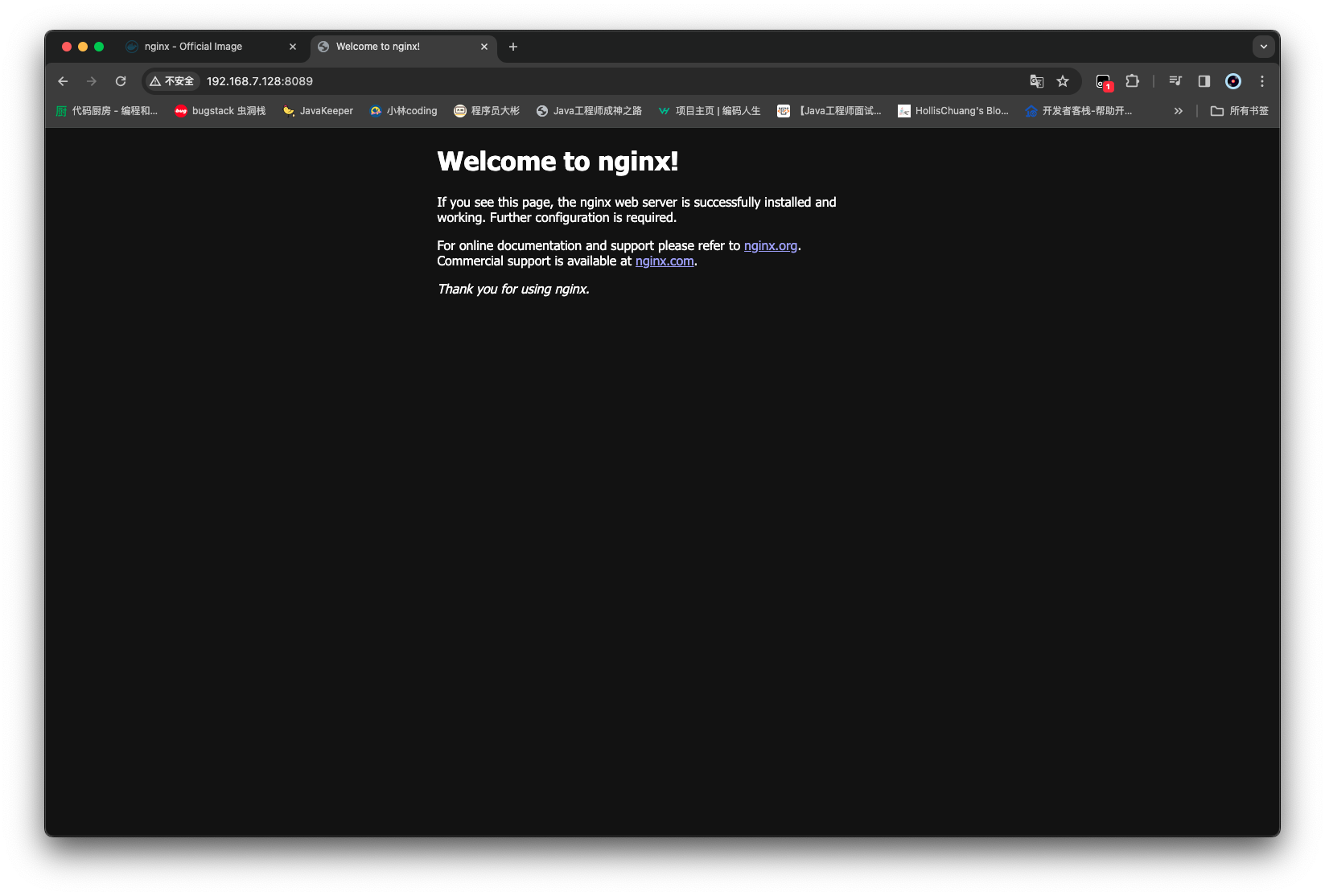
之后在浏览器通过访问主机 ip 地址+port 端口号 (192.168.7.128:8089),访问刚才启动的 nginx 服务
启动容器时配置环境变量

  • docker run mysql启动一个 MySQL 容器
1
2
3
4
5
6
7
8
9
10
11
12
13
14
15
16
17
18
19
20
21
22
23
root@ubuntu-server:~# docker run mysql
Unable to find image 'mysql:latest' locally
latest: Pulling from library/mysql
558b7d69a2e5: Pull complete
2cb5a921059e: Pull complete
b85878fb9bb2: Pull complete
d16f3fd26a82: Pull complete
afd51b5329cb: Pull complete
374d2f7f3267: Pull complete
4ea1bb2c9574: Pull complete
1c9054053605: Pull complete
d79cd2da03be: Pull complete
e3a1aa788d17: Pull complete
Digest: sha256:d7c20c5ba268c558f4fac62977f8c7125bde0630ff8946b08dde44135ef40df3
Status: Downloaded newer image for mysql:latest
2024-01-23 18:45:20+00:00 [Note] [Entrypoint]: Entrypoint script for MySQL Server 8.3.0-1.el8 started.
2024-01-23 18:45:21+00:00 [Note] [Entrypoint]: Switching to dedicated user 'mysql'
2024-01-23 18:45:21+00:00 [Note] [Entrypoint]: Entrypoint script for MySQL Server 8.3.0-1.el8 started.
2024-01-23 18:45:21+00:00 [ERROR] [Entrypoint]: Database is uninitialized and password option is not specified
You need to specify one of the following as an environment variable:
- MYSQL_ROOT_PASSWORD
- MYSQL_ALLOW_EMPTY_PASSWORD
- MYSQL_RANDOM_ROOT_PASSWORD

提示需要执行以下任意一个命令

You need to specify one of the following as an environment variable:

  • MYSQL_ROOT_PASSWORD
  • MYSQL_ALLOW_EMPTY_PASSWORD
  • MYSQL_RANDOM_ROOT_PASSWORD

这时候如果可以实现在启动容器的时候 就配置上环境变量,就可以实现

  • docker run -e [变量名]=[变量值] [镜像名称]
1
2
3
4
5
6
7
8
9
10
11
12
13
14
15
16
17
18
19
20
21
22
23
24
25
26
27
28
29
30
31
32
33
34
35
36
37
38
39
40
41
42
43
44
45
46
47
48
root@ubuntu-server:~# docker run -e MYSQL_ROOT_PASSWORD=123456 mysql
2024-01-23 18:49:31+00:00 [Note] [Entrypoint]: Entrypoint script for MySQL Server 8.3.0-1.el8 started.
2024-01-23 18:49:31+00:00 [Note] [Entrypoint]: Switching to dedicated user 'mysql'
2024-01-23 18:49:31+00:00 [Note] [Entrypoint]: Entrypoint script for MySQL Server 8.3.0-1.el8 started.
2024-01-23 18:49:31+00:00 [Note] [Entrypoint]: Initializing database files
2024-01-23T18:49:31.790608Z 0 [System] [MY-015017] [Server] MySQL Server Initialization - start.
2024-01-23T18:49:31.792861Z 0 [System] [MY-013169] [Server] /usr/sbin/mysqld (mysqld 8.3.0) initializing of server in progress as process 78
2024-01-23T18:49:31.801893Z 1 [System] [MY-013576] [InnoDB] InnoDB initialization has started.
2024-01-23T18:49:33.124408Z 1 [System] [MY-013577] [InnoDB] InnoDB initialization has ended.
2024-01-23T18:49:34.643504Z 6 [Warning] [MY-010453] [Server] root@localhost is created with an empty password ! Please consider switching off the --initialize-insecure option.
2024-01-23T18:49:37.095006Z 0 [System] [MY-015018] [Server] MySQL Server Initialization - end.
2024-01-23 18:49:37+00:00 [Note] [Entrypoint]: Database files initialized
2024-01-23 18:49:37+00:00 [Note] [Entrypoint]: Starting temporary server
2024-01-23T18:49:37.178985Z 0 [System] [MY-015015] [Server] MySQL Server - start.
2024-01-23T18:49:37.938518Z 0 [System] [MY-010116] [Server] /usr/sbin/mysqld (mysqld 8.3.0) starting as process 120
2024-01-23T18:49:37.984832Z 1 [System] [MY-013576] [InnoDB] InnoDB initialization has started.
2024-01-23T18:49:38.618882Z 1 [System] [MY-013577] [InnoDB] InnoDB initialization has ended.
2024-01-23T18:49:39.139280Z 0 [Warning] [MY-010068] [Server] CA certificate ca.pem is self signed.
2024-01-23T18:49:39.139356Z 0 [System] [MY-013602] [Server] Channel mysql_main configured to support TLS. Encrypted connections are now supported for this channel.
2024-01-23T18:49:39.142832Z 0 [Warning] [MY-011810] [Server] Insecure configuration for --pid-file: Location '/var/run/mysqld' in the path is accessible to all OS users. Consider choosing a different directory.
2024-01-23T18:49:39.222585Z 0 [System] [MY-011323] [Server] X Plugin ready for connections. Socket: /var/run/mysqld/mysqlx.sock
2024-01-23T18:49:39.236461Z 0 [System] [MY-010931] [Server] /usr/sbin/mysqld: ready for connections. Version: '8.3.0' socket: '/var/run/mysqld/mysqld.sock' port: 0 MySQL Community Server - GPL.
2024-01-23 18:49:39+00:00 [Note] [Entrypoint]: Temporary server started.
'/var/lib/mysql/mysql.sock' -> '/var/run/mysqld/mysqld.sock'
Warning: Unable to load '/usr/share/zoneinfo/iso3166.tab' as time zone. Skipping it.
Warning: Unable to load '/usr/share/zoneinfo/leap-seconds.list' as time zone. Skipping it.
Warning: Unable to load '/usr/share/zoneinfo/leapseconds' as time zone. Skipping it.
Warning: Unable to load '/usr/share/zoneinfo/tzdata.zi' as time zone. Skipping it.
Warning: Unable to load '/usr/share/zoneinfo/zone.tab' as time zone. Skipping it.
Warning: Unable to load '/usr/share/zoneinfo/zone1970.tab' as time zone. Skipping it.

2024-01-23 18:49:43+00:00 [Note] [Entrypoint]: Stopping temporary server
2024-01-23T18:49:43.608667Z 10 [System] [MY-013172] [Server] Received SHUTDOWN from user root. Shutting down mysqld (Version: 8.3.0).
2024-01-23T18:49:44.452345Z 0 [System] [MY-010910] [Server] /usr/sbin/mysqld: Shutdown complete (mysqld 8.3.0) MySQL Community Server - GPL.
2024-01-23T18:49:44.452374Z 0 [System] [MY-015016] [Server] MySQL Server - end.
2024-01-23 18:49:44+00:00 [Note] [Entrypoint]: Temporary server stopped

2024-01-23 18:49:44+00:00 [Note] [Entrypoint]: MySQL init process done. Ready for start up.

2024-01-23T18:49:44.647019Z 0 [System] [MY-015015] [Server] MySQL Server - start.
2024-01-23T18:49:44.932472Z 0 [System] [MY-010116] [Server] /usr/sbin/mysqld (mysqld 8.3.0) starting as process 1
2024-01-23T18:49:44.939342Z 1 [System] [MY-013576] [InnoDB] InnoDB initialization has started.
2024-01-23T18:49:45.096752Z 1 [System] [MY-013577] [InnoDB] InnoDB initialization has ended.
2024-01-23T18:49:45.319462Z 0 [Warning] [MY-010068] [Server] CA certificate ca.pem is self signed.
2024-01-23T18:49:45.319508Z 0 [System] [MY-013602] [Server] Channel mysql_main configured to support TLS. Encrypted connections are now supported for this channel.
2024-01-23T18:49:45.321697Z 0 [Warning] [MY-011810] [Server] Insecure configuration for --pid-file: Location '/var/run/mysqld' in the path is accessible to all OS users. Consider choosing a different directory.
2024-01-23T18:49:45.347896Z 0 [System] [MY-011323] [Server] X Plugin ready for connections. Bind-address: '::' port: 33060, socket: /var/run/mysqld/mysqlx.sock
2024-01-23T18:49:45.348529Z 0 [System] [MY-010931] [Server] /usr/sbin/mysqld: ready for connections. Version: '8.3.0' socket: '/var/run/mysqld/mysqld.sock' port: 3306 MySQL Community Server - GPL.

服务启动之后可以尝试连接一下

1
2
3
4
5
6
7
8
9
10
11
12
13
14
15
16
17
18
19
20
21
22
23
24
25
26
27
28
29
30
31
32
33
34
35
36
37
root@ubuntu-server:~# docker ps
CONTAINER ID IMAGE COMMAND CREATED STATUS PORTS NAMES
2edfbe0997f3 mysql "docker-entrypoint.s…" 2 minutes ago Up 2 minutes 3306/tcp, 33060/tcp gallant_cori

root@ubuntu-server:~# docker inspect 2edfbe0997f3 | grep "IPAddress"
"SecondaryIPAddresses": null,
"IPAddress": "172.17.0.2",

root@ubuntu-server:~# mysql -h 172.17.0.2 -u root -p
Enter password:
Welcome to the MySQL monitor. Commands end with ; or \g.
Your MySQL connection id is 8
Server version: 8.3.0 MySQL Community Server - GPL

Copyright (c) 2000, 2023, Oracle and/or its affiliates.

Oracle is a registered trademark of Oracle Corporation and/or its
affiliates. Other names may be trademarks of their respective
owners.

Type 'help;' or '\h' for help. Type '\c' to clear the current input statement.

mysql> show databases
-> ;
+--------------------+
| Database |
+--------------------+
| information_schema |
| mysql |
| performance_schema |
| sys |
+--------------------+
4 rows in set (0.01 sec)

mysql>

启动容器时配置路径映射

当 docker 中的一个 mysql 服务容器删除之后,之前在这个容器中创建的数据库、表都会消失掉;

那如果可以将主机的某个路径(磁盘卷)映射到容器中,使得数据库、表存储在主机中,就不会因为容器的删除而导致数据的丢失

  • docker run -v [主机路径]:[容器路径] [镜像名称]创建一个映射路径的容器

先停掉之前的服务,然后创建 第一个 mysql 容器,然后在这个容器里面创建 一个数据库 之后删除掉这个容器

1
2
3
4
5
6
7
8
9
10
11
12
13
14
15
16
17
18
19
20
21
22
23
24
25
26
27
28
29
30
31
32
33
34
35
36
37
38
39
40
41
42
43
44
45
46
47
48
49
50
51
52
53
54
55
56
57
58
59
root@ubuntu-server:~# docker run -e MYSQL_ROOT_PASSWORD=123456 -v /opt/mysql:/var/lib/mysql mysql
2024-01-23 19:09:44+00:00 [Note] [Entrypoint]: Entrypoint script for MySQL Server 8.3.0-1.el8 started.
2024-01-23 19:09:44+00:00 [Note] [Entrypoint]: Switching to dedicated user 'mysql'
2024-01-23 19:09:44+00:00 [Note] [Entrypoint]: Entrypoint script for MySQL Server 8.3.0-1.el8 started.
2024-01-23 19:09:44+00:00 [Note] [Entrypoint]: Initializing database files
2024-01-23T19:09:44.568209Z 0 [System] [MY-015017] [Server] MySQL Server Initialization - start.
2024-01-23T19:09:44.570481Z 0 [System] [MY-013169] [Server] /usr/sbin/mysqld (mysqld 8.3.0) initializing of server in progress as process 80
...

root@ubuntu-server:~# docker ps
CONTAINER ID IMAGE COMMAND CREATED STATUS PORTS NAMES
96a607ba155f mysql "docker-entrypoint.s…" About a minute ago Up About a minute 3306/tcp, 33060/tcp zen_newton
root@ubuntu-server:~# mysql -h 172.17.0.2 -u root -p
Enter password:
Welcome to the MySQL monitor. Commands end with ; or \g.
Your MySQL connection id is 8
Server version: 8.3.0 MySQL Community Server - GPL

Copyright (c) 2000, 2023, Oracle and/or its affiliates.

Oracle is a registered trademark of Oracle Corporation and/or its
affiliates. Other names may be trademarks of their respective
owners.

Type 'help;' or '\h' for help. Type '\c' to clear the current input statement.

mysql> create database db_in_opt;
Query OK, 1 row affected (0.00 sec)

mysql> show databases;
+--------------------+
| Database |
+--------------------+
| db_in_opt |
| information_schema |
| mysql |
| performance_schema |
| sys |
+--------------------+
5 rows in set (0.01 sec)

mysql> exit
Bye
root@ubuntu-server:~# docker ps
CONTAINER ID IMAGE COMMAND CREATED STATUS PORTS NAMES
96a607ba155f mysql "docker-entrypoint.s…" 3 minutes ago Up 3 minutes 3306/tcp, 33060/tcp zen_newton
root@ubuntu-server:~# docker stop 96a607ba155f
INFO[2024-01-23T19:12:59.513932769Z] ignoring event container=96a607ba155fb9f8095038725c3ecbc98aca97f8f2b85434790a50ce04e1d67e module=libcontainerd namespace=moby topic=/tasks/delete type="*events.TaskDelete"
96a607ba155f
root@ubuntu-server:~# docker rm 96a607ba155f
96a607ba155f
root@ubuntu-server:~# docker ps -a
CONTAINER ID IMAGE COMMAND CREATED STATUS PORTS NAMES
2edfbe0997f3 mysql "docker-entrypoint.s…" 23 minutes ago Exited (0) 5 minutes ago gallant_cori
23c63d5c74d7 mysql "docker-entrypoint.s…" 27 minutes ago Exited (1) 27 minutes ago trusting_mccarthy
f67b48039737 nginx "/docker-entrypoint.…" 34 minutes ago Exited (0) 24 minutes ago friendly_babbage
9dd09b818936 nginx:1.24.0 "/docker-entrypoint.…" 50 minutes ago Exited (127) 49 minutes ago nginx_test_bash
550565930a6a nginx "/docker-entrypoint.…" 52 minutes ago Exited (0) 36 minutes ago nginx_test1
2d987d559739 hello-world "/hello" 6 hours ago Exited (0) 6 hours ago loving_lehmann

紧接着 再次执行 创建映射的 MySQL 容器 查看一下之前所创建的数据库是否存在

1
2
3
4
5
6
7
8
9
10
11
12
13
14
15
16
17
18
19
20
21
22
23
24
25
26
27
28
29
30
31
32
33
34
35
36
root@ubuntu-server:~# docker run -e MYSQL_ROOT_PASSWORD=123456 -v /opt/mysql:/var/lib/mysql mysql
2024-01-23 19:14:55+00:00 [Note] [Entrypoint]: Entrypoint script for MySQL Server 8.3.0-1.el8 started.
2024-01-23 19:14:55+00:00 [Note] [Entrypoint]: Switching to dedicated user 'mysql'
2024-01-23 19:14:55+00:00 [Note] [Entrypoint]: Entrypoint script for MySQL Server 8.3.0-1.el8 started.
'/var/lib/mysql/mysql.sock' -> '/var/run/mysqld/mysqld.sock'
2024-01-23T19:14:55.912867Z 0 [System] [MY-015015] [Server] MySQL Server - start.
...

root@ubuntu-server:~# docker ps
CONTAINER ID IMAGE COMMAND CREATED STATUS PORTS NAMES
98c3aba2809e mysql "docker-entrypoint.s…" 44 seconds ago Up 44 seconds 3306/tcp, 33060/tcp peaceful_moser
root@ubuntu-server:~# mysql -h 172.17.0.2 -u root -p
Enter password:
Welcome to the MySQL monitor. Commands end with ; or \g.
Your MySQL connection id is 8
Server version: 8.3.0 MySQL Community Server - GPL

Copyright (c) 2000, 2023, Oracle and/or its affiliates.

Oracle is a registered trademark of Oracle Corporation and/or its
affiliates. Other names may be trademarks of their respective
owners.

Type 'help;' or '\h' for help. Type '\c' to clear the current input statement.

mysql> show databases;
+--------------------+
| Database |
+--------------------+
| db_in_opt |
| information_schema |
| mysql |
| performance_schema |
| sys |
+--------------------+
5 rows in set (0.00 sec)

自定义 docker Image 镜像

之前的操作都是在拉取官方的 image 运行的,若想实现一个自己的 image 需要如何操作

查看已拉取镜像

  • docker images
  • docker image ls
1
2
3
4
5
6
7
8
9
10
11
12
13
root@ubuntu-server:~# docker image ls
REPOSITORY TAG IMAGE ID CREATED SIZE
mysql latest 56b21e040954 5 days ago 632MB
nginx latest a8758716bb6a 3 months ago 187MB
hello-world latest d2c94e258dcb 8 months ago 13.3kB
nginx 1.24.0 f373f7a623e7 9 months ago 142MB

root@ubuntu-server:~# docker images
REPOSITORY TAG IMAGE ID CREATED SIZE
mysql latest 56b21e040954 5 days ago 632MB
nginx latest a8758716bb6a 3 months ago 187MB
hello-world latest d2c94e258dcb 8 months ago 13.3kB
nginx 1.24.0 f373f7a623e7 9 months ago 142MB

拉取镜像

  • docker pull [镜像名称image_name]<:[版本号Tag]> 不指定版本号默认拉取最新版本
1
2
3
4
5
6
7
8
9
10
11
12
13
14
15
16
17
18
19
20
21
root@ubuntu-server:~# docker pull centos
Using default tag: latest
latest: Pulling from library/centos
a1d0c7532777: Pull complete
Digest: sha256:a27fd8080b517143cbbbab9dfb7c8571c40d67d534bbdee55bd6c473f432b177
Status: Downloaded newer image for centos:latest
docker.io/library/centos:latest
root@ubuntu-server:~# docker pull centos:7
7: Pulling from library/centos
2d473b07cdd5: Pull complete
Digest: sha256:be65f488b7764ad3638f236b7b515b3678369a5124c47b8d32916d6487418ea4
Status: Downloaded newer image for centos:7
docker.io/library/centos:7
root@ubuntu-server:~# docker images
REPOSITORY TAG IMAGE ID CREATED SIZE
mysql latest 56b21e040954 5 days ago 632MB
nginx latest a8758716bb6a 3 months ago 187MB
hello-world latest d2c94e258dcb 8 months ago 13.3kB
nginx 1.24.0 f373f7a623e7 9 months ago 142MB
centos 7 eeb6ee3f44bd 2 years ago 204MB
centos latest 5d0da3dc9764 2 years ago 231MB

删除镜像

  • docker image rm [镜像名称image_name]<:[版本号Tag]> 不指定版本号默认删除最新版本
  • docker rmi [镜像名称image_name]<:[版本号Tag]>
1
2
3
4
5
6
7
8
9
10
11
12
13
14
15
16
root@ubuntu-server:~# docker image rm centos
Untagged: centos:latest
Untagged: centos@sha256:a27fd8080b517143cbbbab9dfb7c8571c40d67d534bbdee55bd6c473f432b177
Deleted: sha256:5d0da3dc976460b72c77d94c8a1ad043720b0416bfc16c52c45d4847e53fadb6
Deleted: sha256:74ddd0ec08fa43d09f32636ba91a0a3053b02cb4627c35051aff89f853606b59
root@ubuntu-server:~# docker image rm centos:7
Untagged: centos:7
Untagged: centos@sha256:be65f488b7764ad3638f236b7b515b3678369a5124c47b8d32916d6487418ea4
Deleted: sha256:eeb6ee3f44bd0b5103bb561b4c16bcb82328cfe5809ab675bb17ab3a16c517c9
Deleted: sha256:174f5685490326fc0a1c0f5570b8663732189b327007e47ff13d2ca59673db02
root@ubuntu-server:~# docker images
REPOSITORY TAG IMAGE ID CREATED SIZE
mysql latest 56b21e040954 5 days ago 632MB
nginx latest a8758716bb6a 3 months ago 187MB
hello-world latest d2c94e258dcb 8 months ago 13.3kB
nginx 1.24.0 f373f7a623e7 9 months ago 142MB

编写 Dockerfile

新建一个 Flask 项目并且创建 Dockerfile、app.py、requirements.txt

1
2
3
4
5
6
7
8
9
10
11
12
FROM ubuntu:latest
LABEL authors="zachary"

RUN apt update
RUN apt-get install -y python3 python3-pip

COPY requirements.txt .
RUN pip3 install -r requirements.txt

COPY app.py /opt/app.py

ENTRYPOINT FLASK_APP=/opt/app.py flask run --host=0.0.0.0
1
flask
1
2
3
4
5
6
7
8
9
10
11
12
13
14
15
16
17
from flask import Flask

app = Flask(__name__)


@app.route('/')
def hello_world(): # put application's code here
return 'Hello World!'


@app.route('/index')
def index():
return 'Index Page!'


if __name__ == '__main__':
app.run()

将上述代码打包放到 GitHub:https://github.com/BlockZachary/flaskDockerSample
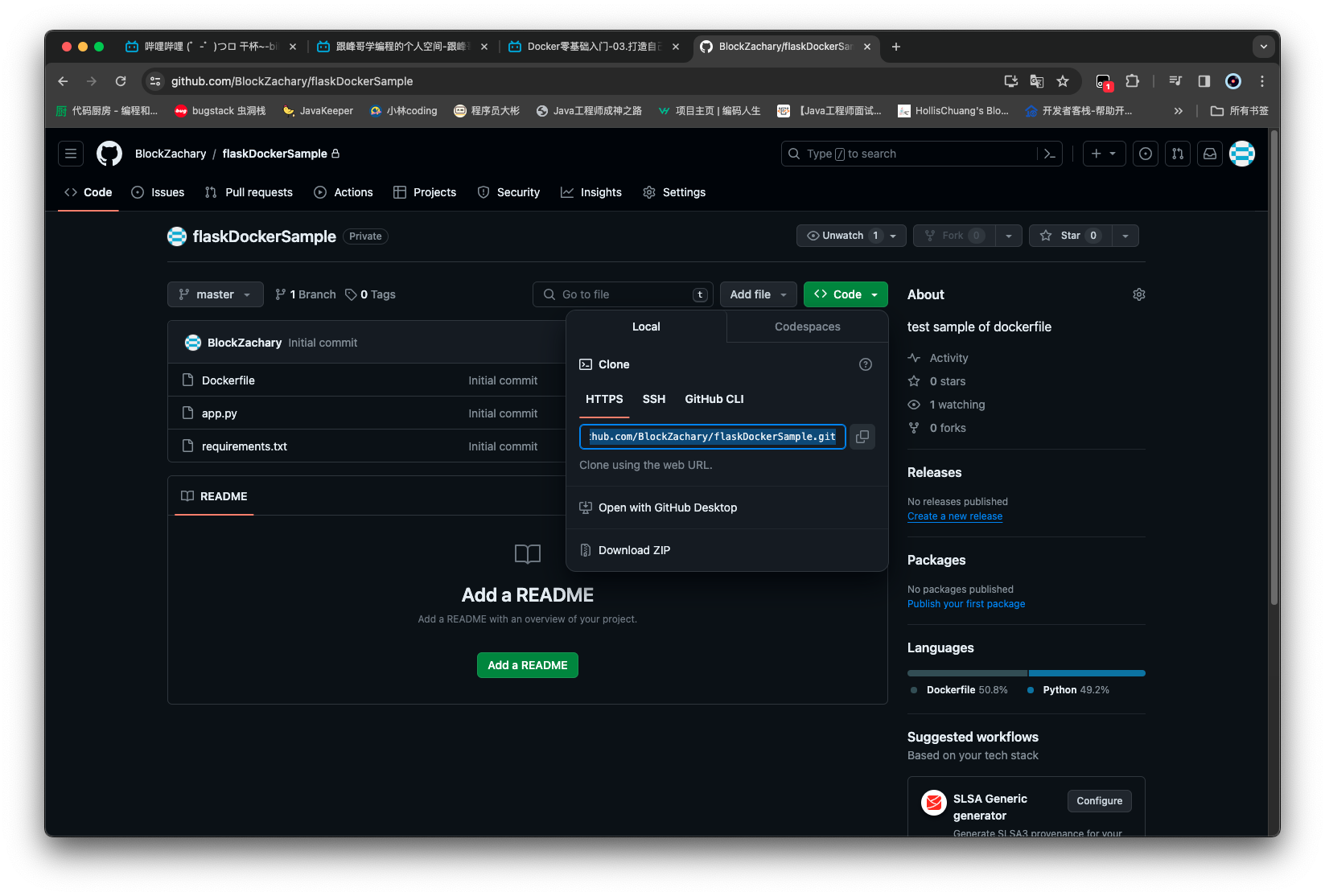
然后在服务器主机上面操作,先将代码克隆到主机上

1
2
3
4
5
6
7
8
9
10
11
12
13
14
15
16
17
18
19
20
21
22
23
24
25
26
27
28
29
30
31
32
33
34
35
36
37
38
39
40
41
42
43
44
45
46
47
root@ubuntu-server:~/pythonProject# git clone https://github.com/BlockZachary/flaskDockerSample.git
19:10:50.593675 git.c:439 trace: built-in: git clone https://github.com/BlockZachary/flaskDockerSample.git
Cloning into 'flaskDockerSample'...
19:10:50.598505 run-command.c:663 trace: run_command: git-remote-https origin https://github.com/BlockZachary/flaskDockerSample.git
* Couldn't find host github.com in the .netrc file; using defaults
* Trying 140.82.113.4:443...
* TCP_NODELAY set
* Connected to github.com (140.82.113.4) port 443 (#0)
* found 411 certificates in /etc/ssl/certs
* ALPN, offering h2
* ALPN, offering http/1.1
* SSL connection using TLS1.3 / ECDHE_RSA_AES_128_GCM_SHA256
* server certificate verification OK
* server certificate status verification SKIPPED
* common name: github.com (matched)
* server certificate expiration date OK
* server certificate activation date OK
* certificate public key: EC/ECDSA
* certificate version: #3
* subject: C=US,ST=California,L=San Francisco,O=GitHub\, Inc.,CN=github.com
* start date: Tue, 14 Feb 2023 00:00:00 GMT
* expire date: Thu, 14 Mar 2024 23:59:59 GMT
* issuer: C=US,O=DigiCert Inc,CN=DigiCert TLS Hybrid ECC SHA384 2020 CA1
* ALPN, server accepted to use h2
* Using HTTP2, server supports multi-use
* Connection state changed (HTTP/2 confirmed)
* Copying HTTP/2 data in stream buffer to connection buffer after upgrade: len=0
* Using Stream ID: 1 (easy handle 0x55691a2a4f80)
> GET /BlockZachary/flaskDockerSample.git/info/refs?service=git-upload-pack HTTP/2
...

root@ubuntu-server:~/pythonProject# ll
total 12
drwxr-xr-x 3 root root 4096 Jan 24 19:10 ./
drwx------ 8 root root 4096 Jan 24 19:04 ../
drwxr-xr-x 3 root root 4096 Jan 24 19:10 flaskDockerSample/

root@ubuntu-server:~/pythonProject# cd flaskDockerSample

root@ubuntu-server:~/pythonProject/flaskDockerSample# ll
total 24
drwxr-xr-x 3 root root 4096 Jan 24 19:10 ./
drwxr-xr-x 3 root root 4096 Jan 24 19:10 ../
-rw-r--r-- 1 root root 245 Jan 24 19:10 app.py
-rw-r--r-- 1 root root 253 Jan 24 19:10 Dockerfile
drwxr-xr-x 8 root root 4096 Jan 24 19:10 .git/
-rw-r--r-- 1 root root 5 Jan 24 19:10 requirements.txt

构建自己的 Image

  • docker build . -t [镜像名称]<:[版本号]> 不填写版本号默认是一个 latest .指的是当前目录
1
2
3
4
5
6
7
8
9
10
11
12
13
14
15
16
17
18
19
20
21
22
23
24
25
26
27
28
root@ubuntu-server:~/pythonProject/flaskDockerSample# docker build . -t myflasksample
[+] Building 178.7s (11/11) FINISHED docker:default
=> [internal] load build definition from Dockerfile 0.0s
=> => transferring dockerfile: 258B 0.0s
=> [internal] load .dockerignore 0.0s
=> => transferring context: 2B 0.0s
=> [internal] load metadata for docker.io/library/ubuntu:latest 33.7s
=> CACHED [1/6] FROM docker.io/library/ubuntu@sha256:e6173d4dc55e76b87c4af8db8821b1feae4146dd47341e4d431118c7dd 0.0s
=> [internal] load build context 0.0s
=> => transferring context: 63B 0.0s
=> [2/6] RUN apt update 10.6s
=> [3/6] RUN apt-get install -y python3.6 python3-pip 45.0s
=> [4/6] COPY requirements.txt . 0.0s
=> [5/6] RUN pip3 install -r requirements.txt 86.7s
=> [6/6] COPY app.py /opt/app.py 0.0s
=> exporting to image 2.4s
=> => exporting layers 2.4s
=> => writing image sha256:e4e6142e4b4159d2becbc57a7d298796fb7613727dafca902dec9f6f641cb39f 0.0s
=> => naming to docker.io/library/myflasksample 0.0s

root@ubuntu-server:~/pythonProject/flaskDockerSample# docker images
REPOSITORY TAG IMAGE ID CREATED SIZE
myflasksample latest e4e6142e4b41 About a minute ago 484MB
mysql latest 56b21e040954 6 days ago 632MB
nginx latest a8758716bb6a 3 months ago 187MB
hello-world latest d2c94e258dcb 8 months ago 13.3kB
nginx 1.24.0 f373f7a623e7 9 months ago 142MB
root@ubuntu-server:~/pythonProject/flaskDockerSample#

启用自定义 Image 的容器

因为这块用的例子是一个 flask 项目,端口号用的默认是 5000

1
2
3
4
5
6
7
8
root@ubuntu-server:~/pythonProject/flaskDockerSample# docker run -p 8080:5000 myflasksample
* Serving Flask app '/opt/app.py'
* Debug mode: off
WARNING: This is a development server. Do not use it in a production deployment. Use a production WSGI server instead.
* Running on all addresses (0.0.0.0)
* Running on http://127.0.0.1:5000
* Running on http://172.17.0.2:5000
Press CTRL+C to quit
1
2
3
4
5
6
7
8
9
10
11
root@ubuntu-server:~# docker ps
CONTAINER ID IMAGE COMMAND CREATED STATUS PORTS NAMES
2f5c78d92ee9 myflasksample "/bin/sh -c 'FLASK_A…" 43 seconds ago Up 41 seconds 0.0.0.0:8080->5000/tcp, :::8080->5000/tcp busy_cori
root@ubuntu-server:~# docker inspect 2f5c78d92ee9 | grep "IPAddress"
"SecondaryIPAddresses": null,
"IPAddress": "172.17.0.2",

root@ubuntu-server:~# curl http://172.17.0.2:5000
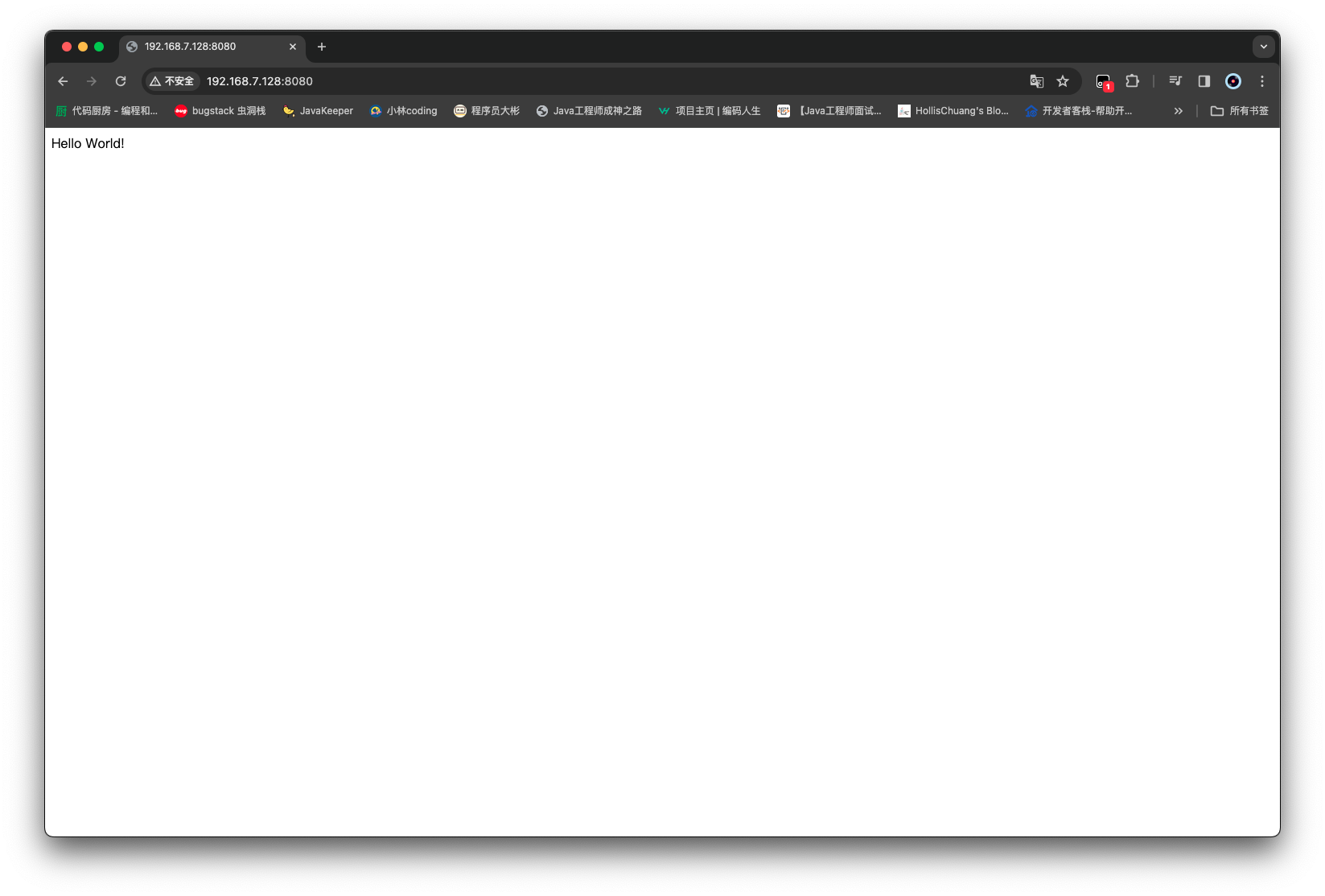
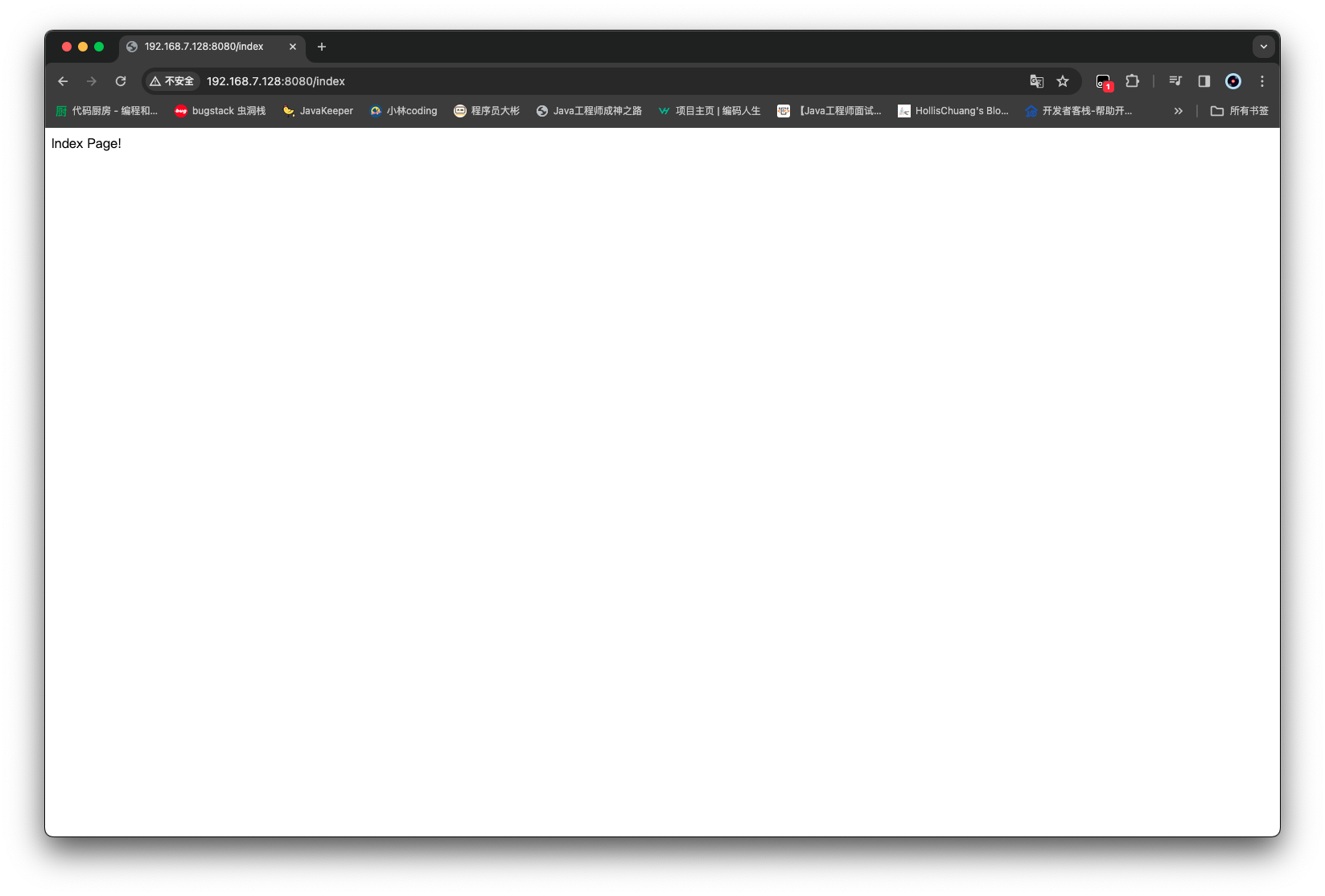
Hello World!root@ubuntcurl http://172.17.0.2:5000/index
Index Page!root@ubuntu-server:~#

使用浏览器也可以正常访问

创建 docker 官方账号、登录

首先在https://hub.docker.com/,注册账号

然后可以在主机中使用 docker logindocker logout进行登录、登出

1
2
3
4
5
6
7
8
9
10
11
12
root@ubuntu-server:~# docker login
Log in with your Docker ID or email address to push and pull images from Docker Hub. If you don't have a Docker ID, head over to https://hub.docker.com/ to create one.
You can log in with your password or a Personal Access Token (PAT). Using a limited-scope PAT grants better security and is required for organizations using SSO. Learn more at https://docs.docker.com/go/access-tokens/

Username: zacharyblock
Password:
WARNING! Your password will be stored unencrypted in /root/.docker/config.json.
Configure a credential helper to remove this warning. See
https://docs.docker.com/engine/reference/commandline/login/#credentials-store

Login Succeeded
root@ubuntu-server:~#

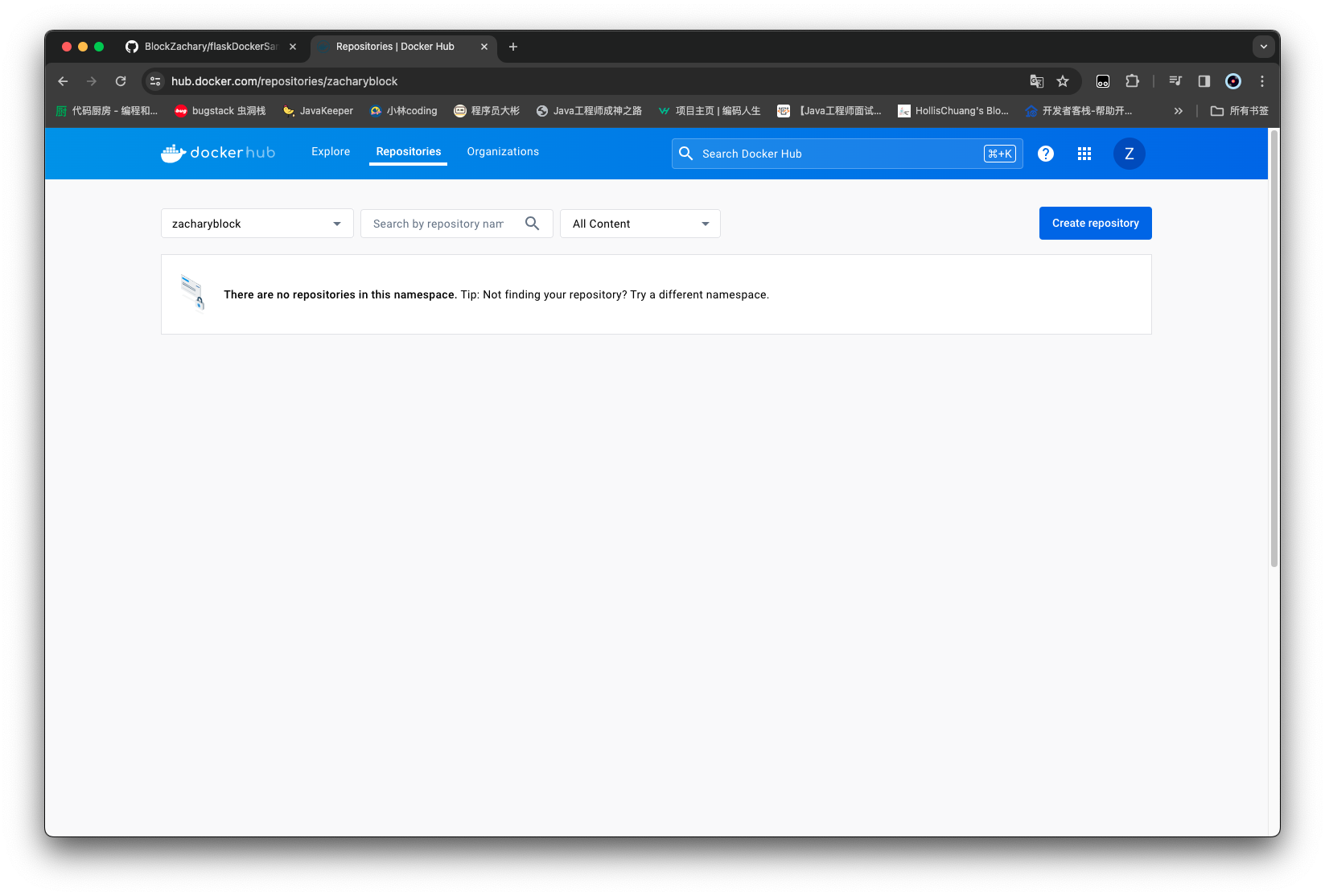
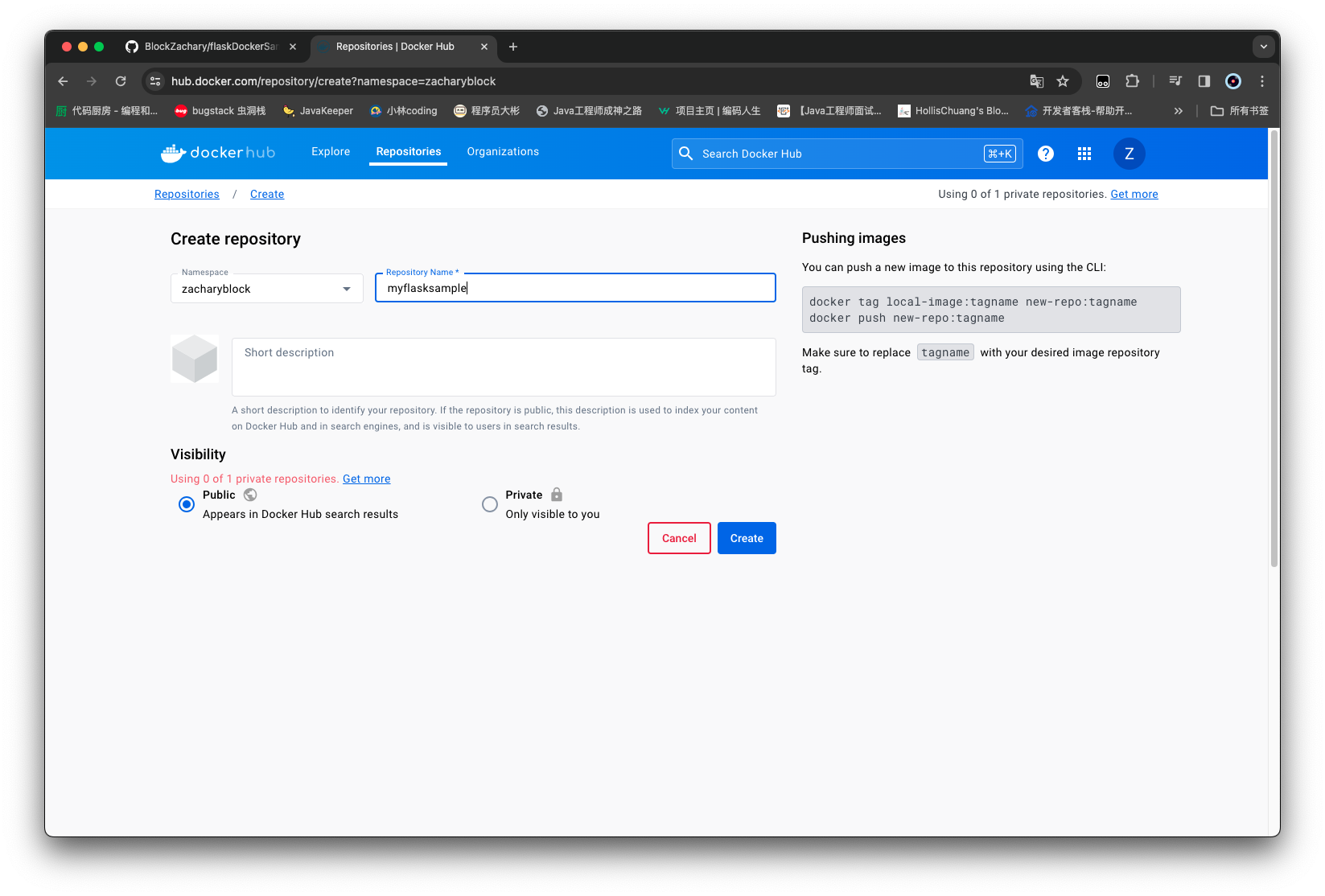
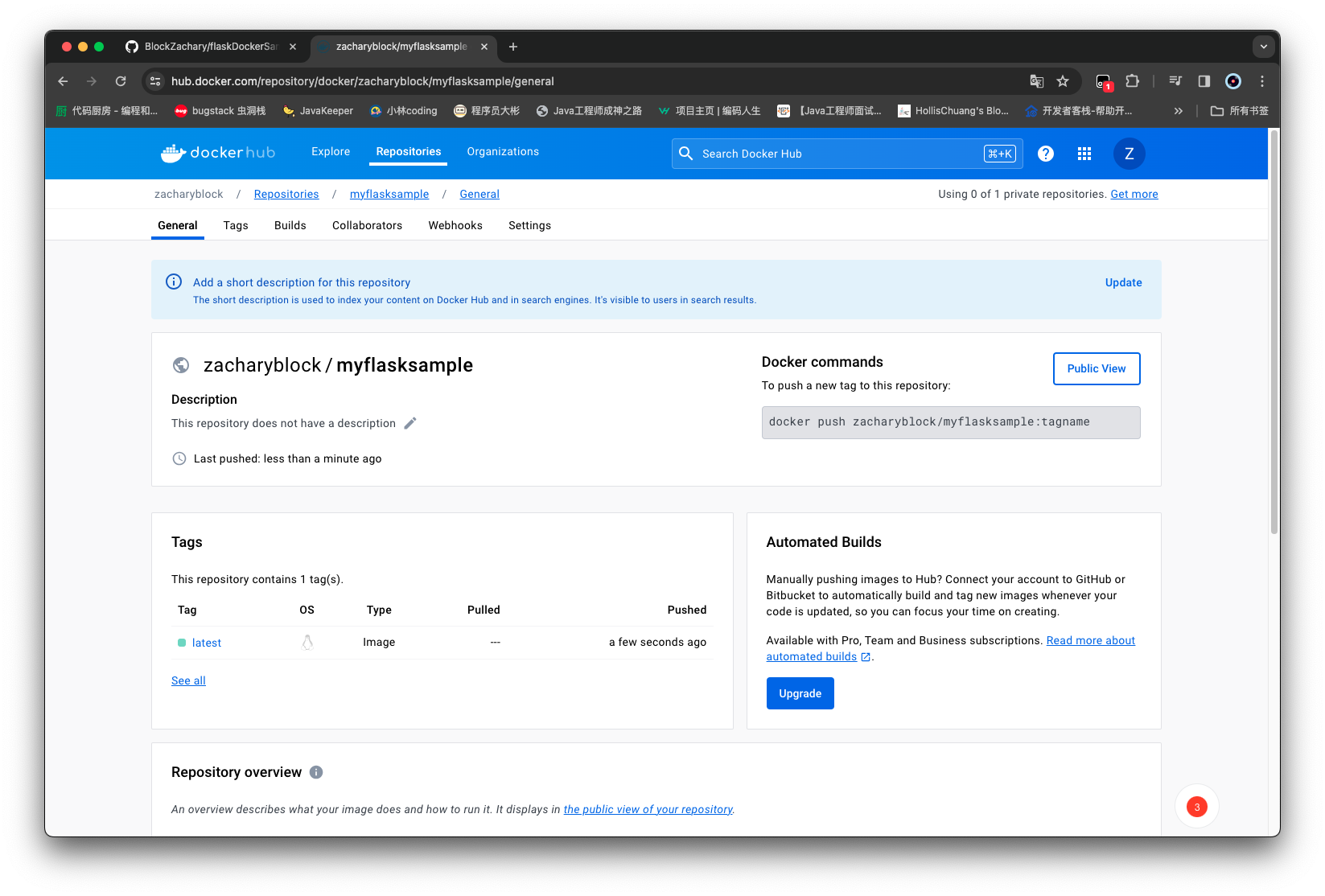
然后再去官网创建一个仓库

可以看到右侧有一段这样的命令:docker push zacharyblock/myflasksample:tagname,

为了实现推送的,必须有一个名称为 zacharyblock/myflasksample的镜像,但是前一步操作,我们只构建了一个名称为myflasksample的镜像,因此我们还需要重新构建一次
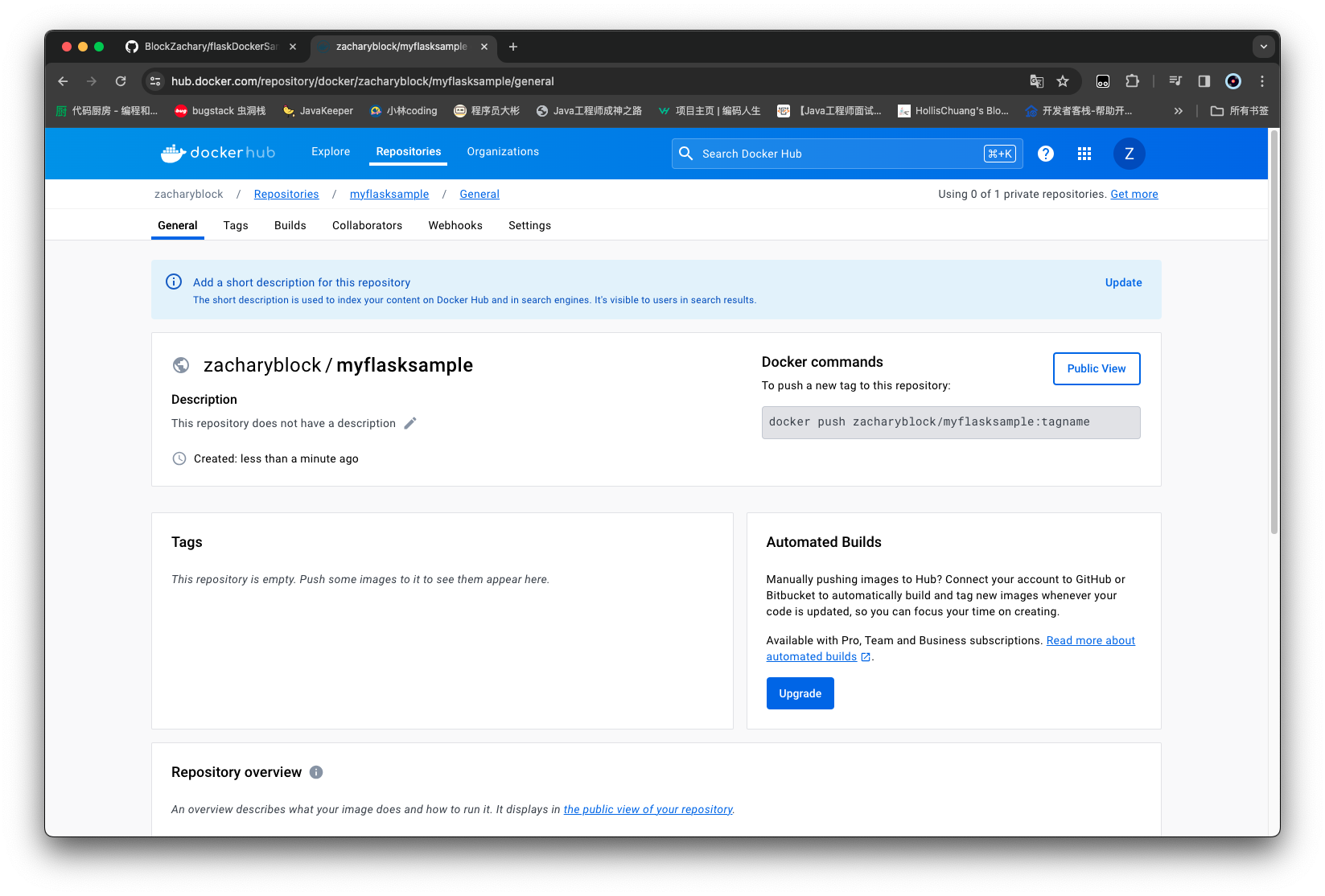
使用docker build . -t zacharyblock/myflasksample构建一下 image

1
2
3
4
5
6
7
8
9
10
11
12
13
14
15
16
17
18
19
20
21
22
23
24
25
26
27
28
29
30
root@ubuntu-server:~/pythonProject/flaskDockerSample# docker build . -t zacharyblock/myflasksample
[+] Building 34.8s (12/12) FINISHED docker:default
=> [internal] load build definition from Dockerfile 0.0s
=> => transferring dockerfile: 258B 0.0s
=> [internal] load .dockerignore 0.0s
=> => transferring context: 2B 0.0s
=> [internal] load metadata for docker.io/library/ubuntu:latest 34.7s
=> [auth] library/ubuntu:pull token for registry-1.docker.io 0.0s
=> [1/6] FROM docker.io/library/ubuntu@sha256:e6173d4dc55e76b87c4af8db8821b1feae4146dd47341e4d431118c7dd060a74 0.0s
=> [internal] load build context 0.0s
=> => transferring context: 63B 0.0s
=> CACHED [2/6] RUN apt update 0.0s
=> CACHED [3/6] RUN apt-get install -y python3.6 python3-pip 0.0s
=> CACHED [4/6] COPY requirements.txt . 0.0s
=> CACHED [5/6] RUN pip3 install -r requirements.txt 0.0s
=> CACHED [6/6] COPY app.py /opt/app.py 0.0s
=> exporting to image 0.0s
=> => exporting layers 0.0s
=> => writing image sha256:e4e6142e4b4159d2becbc57a7d298796fb7613727dafca902dec9f6f641cb39f 0.0s
=> => naming to docker.io/zacharyblock/myflasksample 0.0s

root@ubuntu-server:~/pythonProject/flaskDockerSample# docker images
REPOSITORY TAG IMAGE ID CREATED SIZE
myflasksample latest e4e6142e4b41 30 minutes ago 484MB
zacharyblock/myflasksample latest e4e6142e4b41 30 minutes ago 484MB
mysql latest 56b21e040954 6 days ago 632MB
nginx latest a8758716bb6a 3 months ago 187MB
hello-world latest d2c94e258dcb 8 months ago 13.3kB
nginx 1.24.0 f373f7a623e7 9 months ago 142MB
root@ubuntu-server:~/pythonProject/flaskDockerSample#

推送镜像到远程仓库

  • docker push [镜像名称]<:[版本号]>
1
2
3
4
5
6
7
8
9
root@ubuntu-server:~/pythonProject/flaskDockerSample# docker push zacharyblock/myflasksample
Using default tag: latest
The push refers to repository [docker.io/zacharyblock/myflasksample]
fe70b6de3f96: Pushing [==================================================>] 2.56kB
e30e40d2f01d: Pushing [==================================================>] 4.893MB
79c28b0cc016: Pushed
f9d63cb94619: Pushing [========> ] 61.53MB/354.7MB
f0fad7c9b1fd: Pushing [====================> ] 19.65MB/47.07MB
8e87ff28f1b5: Waiting

推送好了之后,官网可以看到

尝试一下拉取,先删除掉已经有的这个 image,然后再拉取

1
2
3
4
5
6
7
8
9
10
11
12
13
14
15
16
17
18
19
20
21
22
23
24
25
26
27
28
29
30
31
32
root@ubuntu-server:~# docker images
REPOSITORY TAG IMAGE ID CREATED SIZE
myflasksample latest e4e6142e4b41 39 minutes ago 484MB
zacharyblock/myflasksample latest e4e6142e4b41 39 minutes ago 484MB
mysql latest 56b21e040954 6 days ago 632MB
nginx latest a8758716bb6a 3 months ago 187MB
hello-world latest d2c94e258dcb 8 months ago 13.3kB
nginx 1.24.0 f373f7a623e7 9 months ago 142MB
root@ubuntu-server:~# docker rmi zacharyblock/myflasksample
Untagged: zacharyblock/myflasksample:latest
Untagged: zacharyblock/myflasksample@sha256:ea37221e82fe285cd50ff202ae9c08d445a779e40cc3a9f8fbe897144ca2d304
root@ubuntu-server:~# docker images
REPOSITORY TAG IMAGE ID CREATED SIZE
myflasksample latest e4e6142e4b41 39 minutes ago 484MB
mysql latest 56b21e040954 6 days ago 632MB
nginx latest a8758716bb6a 3 months ago 187MB
hello-world latest d2c94e258dcb 8 months ago 13.3kB
nginx 1.24.0 f373f7a623e7 9 months ago 142MB
root@ubuntu-server:~# docker pull zacharyblock/myflasksample
Using default tag: latest
latest: Pulling from zacharyblock/myflasksample
Digest: sha256:ea37221e82fe285cd50ff202ae9c08d445a779e40cc3a9f8fbe897144ca2d304
Status: Downloaded newer image for zacharyblock/myflasksample:latest
docker.io/zacharyblock/myflasksample:latest
root@ubuntu-server:~# docker images
REPOSITORY TAG IMAGE ID CREATED SIZE
myflasksample latest e4e6142e4b41 41 minutes ago 484MB
zacharyblock/myflasksample latest e4e6142e4b41 41 minutes ago 484MB
mysql latest 56b21e040954 6 days ago 632MB
nginx latest a8758716bb6a 3 months ago 187MB
hello-world latest d2c94e258dcb 8 months ago 13.3kB
nginx 1.24.0 f373f7a623e7 9 months ago 142MB

Dockerfile 的 CMD 与 ENTRYPOINT

CMD

为了可以使用命令或者参数在启动容器的时候启动一些我们需要的默认程序,可以使用 CMD

  • Dockerfile 中的 CMD 指令格式
    • CMD [shell命令] 通过 sh 的形式
    • CMD ["命令","参数1","参数2",...]
  • 如果 Dockerfile 中存在多条 CMD 最后一条生效
  • 可以通过在启动容器时,添加参数对 CMD 命令进行替换
    • docker run -it [镜像] [命令] [参数1] [参数2]

这块来一个例子

仍旧是在 ubuntu 主机上面先创建一个项目目录,然后准备 Dockerfile 和 app.py

1
2
3
4
5
6
7
8
9
10
11
12
13
14
15
16
17
18
19
20
21
root@ubuntu-server:~/pythonProject# mkdir cmdDockerSample
root@ubuntu-server:~/pythonProject# cd cmdDockerSample/
root@ubuntu-server:~/pythonProject/cmdDockerSample# pwd
/root/pythonProject/cmdDockerSample
root@ubuntu-server:~/pythonProject/cmdDockerSample# nano Dockerfile
root@ubuntu-server:~/pythonProject/cmdDockerSample# cat Dockerfile
FROM ubuntu

RUN apt update
RUN apt-get install -y python3

COPY app.py /opt/app.py

WORKDIR /opt/

CMD ["python3", "app.py", "para1", "para2"]
root@ubuntu-server:~/pythonProject/cmdDockerSample# nano app.py
root@ubuntu-server:~/pythonProject/cmdDockerSample# cat app.py
import sys

print(sys.argv)

然后对该项目进行镜像构建,构建一个容器后会打印出参数,也可以通过命令参数进行 CMD 替换

1
2
3
4
5
6
7
8
9
10
11
12
13
14
15
16
17
18
19
20
21
22
23
24
root@ubuntu-server:~/pythonProject/cmdDockerSample# docker build . -t cmddockersample
[+] Building 209.6s (10/10) FINISHED docker:default
=> [internal] load .dockerignore 0.0s
=> => transferring context: 2B 0.0s
=> [internal] load build definition from Dockerfile 0.0s
=> => transferring dockerfile: 183B 0.0s
=> [internal] load metadata for docker.io/library/ubuntu:latest 0.0s
=> CACHED [1/5] FROM docker.io/library/ubuntu 0.0s
=> [internal] load build context 0.0s
=> => transferring context: 27B 0.0s
=> [2/5] RUN apt update 198.6s
=> [3/5] RUN apt-get install -y python3 10.6s
=> [4/5] COPY app.py /opt/app.py 0.1s
=> [5/5] WORKDIR /opt/ 0.0s
=> exporting to image 0.3s
=> => exporting layers 0.3s
=> => writing image sha256:153eeb8273c48d59c08f467e270a5f7518e02135fa32a758439409e0055b4f52 0.0s
=> => naming to docker.io/library/cmddockersample 0.0s

root@ubuntu-server:~/pythonProject/cmdDockerSample# docker run -it cmddockersample
['app.py', 'para1', 'para2']

root@ubuntu-server:~/pythonProject/cmdDockerSample# docker run -it cmddockersample sleep 5
root@ubuntu-server:~/pythonProject/cmdDockerSample#

ENTRYPOINT

用于指定启动容器时候默认运行的程序

  • Dockerfile 中的 ENTRYPOINT 指令格式
    • ENTRYPOINT [shell命令] 通过 sh 的形式
    • ENTRYPOINT ["命令","参数1","参数2",...]
  • 如果 Dockerfile 中只能定义一个 ENTRYPOINT
  • 在启动容器时,不可以对 ENTRYPOINT 命令进行替换
  • 可以用 CMD 给 ENTRYPOINT 指定参数

来一个实例看看

先创建一个 entrypointDockerSample 目录,然后还是创建 Dockerfile 和 app.py

1
2
3
4
5
6
7
8
9
10
11
12
13
14
15
16
17
18
19
20
21
22
23
24
25
26
27
28
29
30
31
32
33
34
35
36
37
38
39
40
41
42
43
root@ubuntu-server:~/pythonProject# mkdir entrypointDockerSample
root@ubuntu-server:~/pythonProject# cd entrypointDockerSample/

root@ubuntu-server:~/pythonProject/entrypointDockerSample# nano Dockerfile
root@ubuntu-server:~/pythonProject/entrypointDockerSample# cat Dockerfile
FROM ubuntu

RUN apt update
RUN apt-get install -y python3

COPY app.py /opt/app.py

WORKDIR /opt/

ENTRYPOINT ["python3", "app.py", "para1", "para2"]
root@ubuntu-server:~/pythonProject/entrypointDockerSample# nano app.py
root@ubuntu-server:~/pythonProject/entrypointDockerSample# cat app.py
import sys

print(sys.argv)
root@ubuntu-server:~/pythonProject/entrypointDockerSample# docker build . -t entrypointdockersample
[+] Building 0.1s (10/10) FINISHED docker:default
=> [internal] load build definition from Dockerfile 0.0s
=> => transferring dockerfile: 190B 0.0s
=> [internal] load .dockerignore 0.0s
=> => transferring context: 2B 0.0s
=> [internal] load metadata for docker.io/library/ubuntu:latest 0.0s
=> [1/5] FROM docker.io/library/ubuntu 0.0s
=> [internal] load build context 0.0s
=> => transferring context: 61B 0.0s
=> CACHED [2/5] RUN apt update 0.0s
=> CACHED [3/5] RUN apt-get install -y python3 0.0s
=> CACHED [4/5] COPY app.py /opt/app.py 0.0s
=> CACHED [5/5] WORKDIR /opt/ 0.0s
=> exporting to image 0.0s
=> => exporting layers 0.0s
=> => writing image sha256:d3e54cbe8477ec5f625fb675a14e5aa2ea3dc9b8be3b2b5efbd3d2a344c5be64 0.0s
=> => naming to docker.io/library/entrypointdockersample 0.0s
root@ubuntu-server:~/pythonProject/entrypointDockerSample# docker run -it entrypointdockersample
['app.py', 'para1', 'para2']
root@ubuntu-server:~/pythonProject/entrypointDockerSample# docker run -it entrypointdockersample sleep 5
['app.py', 'para1', 'para2', 'sleep', '5']
root@ubuntu-server:~/pythonProject/entrypointDockerSample#

通过上面的例子可以看出来,当使用了 entrypoint 的时候 在创建容器的时候命令行增加的参数并没有替换掉原先的参数 而是给原先的参数增加上了

CMD 结合 ENTRYPOINT

通过上面两个例子,如果将 CMD 和 ENTRYPOINT 结合起来使用 可以实现对既定的命令保持不变 对某些参数进行替换的操作

1
2
3
4
5
6
7
8
9
10
11
12
13
14
15
16
17
18
19
20
21
22
23
24
25
26
27
28
29
30
31
32
33
34
35
36
37
38
39
40
41
42
43
44
45
46
47
48
49
root@ubuntu-server:~/pythonProject# mkdir cmdEntrypointDockerSample
root@ubuntu-server:~/pythonProject# cd cmdEntrypointDockerSample/
root@ubuntu-server:~/pythonProject/cmdEntrypointDockerSample# nano Dockerfile
root@ubuntu-server:~/pythonProject/cmdEntrypointDockerSample# cat Dockerfile
FROM ubuntu

RUN apt update
RUN apt-get install -y python3

COPY app.py /opt/app.py

WORKDIR /opt/

ENTRYPOINT ["python3", "app.py"]
CMD ["para1","para2"]

root@ubuntu-server:~/pythonProject/cmdEntrypointDockerSample# nano app.py
root@ubuntu-server:~/pythonProject/cmdEntrypointDockerSample# cat app.py
import sys

print(sys.argv)
root@ubuntu-server:~/pythonProject/cmdEntrypointDockerSample# docker build . -t cmdEntrypointDockerSample
[+] Building 0.0s (0/0) docker:default
ERROR: invalid tag "cmdEntrypointDockerSample": repository name must be lowercase
root@ubuntu-server:~/pythonProject/cmdEntrypointDockerSample#
root@ubuntu-server:~/pythonProject/cmdEntrypointDockerSample# docker build . -t cmdentrypointdockersample
[+] Building 0.1s (10/10) FINISHED docker:default
=> [internal] load build definition from Dockerfile 0.0s
=> => transferring dockerfile: 195B 0.0s
=> [internal] load .dockerignore 0.0s
=> => transferring context: 2B 0.0s
=> [internal] load metadata for docker.io/library/ubuntu:latest 0.0s
=> [1/5] FROM docker.io/library/ubuntu 0.0s
=> [internal] load build context 0.0s
=> => transferring context: 61B 0.0s
=> CACHED [2/5] RUN apt update 0.0s
=> CACHED [3/5] RUN apt-get install -y python3 0.0s
=> CACHED [4/5] COPY app.py /opt/app.py 0.0s
=> CACHED [5/5] WORKDIR /opt/ 0.0s
=> exporting to image 0.0s
=> => exporting layers 0.0s
=> => writing image sha256:01ab92cd6837ea8381cf83e66a2214eb9de94a133b460584fe9a5bf4dc03433e 0.0s
=> => naming to docker.io/library/cmdentrypointdockersample 0.0s

root@ubuntu-server:~/pythonProject/cmdEntrypointDockerSample# docker run -it cmdentrypointdockersample
['app.py', 'para1', 'para2']
root@ubuntu-server:~/pythonProject/cmdEntrypointDockerSample# docker run -it cmdentrypointdockersample hello para3
['app.py', 'hello', 'para3']
root@ubuntu-server:~/pythonProject/cmdEntrypointDockerSample#

多容器互联

建立多容器互联网络

  • docker network ls查看当前所有网络
  • docker network create [网络名称] 创建一个新的网络
  • docker network rm [网络名称] 移除一个网络
1
2
3
4
5
6
7
8
9
10
11
12
13
root@ubuntu-server:~# docker network ls
NETWORK ID NAME DRIVER SCOPE
0b6264c729e5 bridge bridge local
3bef0fd15183 host host local
270d5cbcbd9e none null local
root@ubuntu-server:~# docker network create nw_test
0a683526a3b9476ccba81290f2efd32f12bd04514c428ae6f838482533d663a5
root@ubuntu-server:~# docker network ls
NETWORK ID NAME DRIVER SCOPE
0b6264c729e5 bridge bridge local
3bef0fd15183 host host local
270d5cbcbd9e none null local
0a683526a3b9 nw_test bridge local

启动容器并加入互联网络

  • docker run --network [要加入的网络名称] --network-alias [容器在网络中的别名] [镜像名称]

自己制作一个镜像

1
2
3
4
5
6
FROM ubuntu

RUN apt update
RUN apt-get install -y iputils-ping

CMD bash
1
2
3
4
5
6
7
8
9
10
11
12
13
14
15
16
root@ubuntu-server:~/dockerDIYImage/ubuntu_Ping# nano Dockerfile
root@ubuntu-server:~/dockerDIYImage/ubuntu_Ping# docker build . -t myos
[+] Building 6.2s (7/7) FINISHED docker:default
=> [internal] load .dockerignore 0.0s
=> => transferring context: 2B 0.0s
=> [internal] load build definition from Dockerfile 0.0s
=> => transferring dockerfile: 112B 0.0s
=> [internal] load metadata for docker.io/library/ubuntu:latest 0.0s
=> [1/3] FROM docker.io/library/ubuntu 0.0s
=> CACHED [2/3] RUN apt update 0.0s
=> [3/3] RUN apt-get install -y iputils-ping 6.1s
=> exporting to image 0.1s
=> => exporting layers 0.1s
=> => writing image sha256:eb06c6d74ffa1b4e55d02fd29677d262a031fb92985bc38a0e1eba69e784cb61 0.0s
=> => naming to docker.io/library/myos 0.0s
root@ubuntu-server:~/dockerDIYImage/ubuntu_Ping#

首先在一个控制台创建一个容器并起别名

1
2
root@ubuntu-server:~# docker run -it --rm --network nw_test --network-alias c1 myos
root@e1c90c8fc513:/#

然后在另一个控制台创建另一个容器

1
2
root@ubuntu-server:~# docker run -it --rm --network nw_test --network-alias c2 myos
root@68be5a3af8a3:/#

然后分别在两个控制台中 ping 对方容器的别名

1
2
3
4
5
6
7
8
9
10
11
12
13
root@ubuntu-server:~# docker run -it --rm --network nw_test --network-alias c1 myos
root@e1c90c8fc513:/# ping c2
PING c2 (172.18.0.3) 56(84) bytes of data.
64 bytes from c2.nw_test (172.18.0.3): icmp_seq=1 ttl=64 time=0.301 ms
64 bytes from c2.nw_test (172.18.0.3): icmp_seq=2 ttl=64 time=0.101 ms
64 bytes from c2.nw_test (172.18.0.3): icmp_seq=3 ttl=64 time=0.078 ms
64 bytes from c2.nw_test (172.18.0.3): icmp_seq=4 ttl=64 time=0.098 ms
64 bytes from c2.nw_test (172.18.0.3): icmp_seq=5 ttl=64 time=0.104 ms
^C
--- c2 ping statistics ---
5 packets transmitted, 5 received, 0% packet loss, time 4007ms
rtt min/avg/max/mdev = 0.078/0.136/0.301/0.082 ms
root@e1c90c8fc513:/#
1
2
3
4
5
6
7
8
9
10
11
12
13
root@ubuntu-server:~# docker run -it --rm --network nw_test --network-alias c2 myos
root@68be5a3af8a3:/# ping c1
PING c1 (172.18.0.2) 56(84) bytes of data.
64 bytes from c1.nw_test (172.18.0.2): icmp_seq=1 ttl=64 time=0.120 ms
64 bytes from c1.nw_test (172.18.0.2): icmp_seq=2 ttl=64 time=0.102 ms
64 bytes from c1.nw_test (172.18.0.2): icmp_seq=3 ttl=64 time=0.101 ms
64 bytes from c1.nw_test (172.18.0.2): icmp_seq=4 ttl=64 time=0.101 ms
64 bytes from c1.nw_test (172.18.0.2): icmp_seq=5 ttl=64 time=0.100 ms
^C
--- c1 ping statistics ---
5 packets transmitted, 5 received, 0% packet loss, time 4070ms
rtt min/avg/max/mdev = 0.100/0.104/0.120/0.007 ms
root@68be5a3af8a3:/#

创建一个 MySQL 容器并加入互联网络

1
2
3
4
5
6
root@ubuntu-server:~# docker run -d --rm --network nw_test --network-alias mysql_server -v /opt/mysql:/var/lib/mysql -e MYSQL_ROOT_PASSWORD=123456 -e MYSQL_DATABASE=wordpressdb mysql
e86fbcde931a1f8bf559980e6c015ff966426d185aeaab29e9b080042ed3ed5f
root@ubuntu-server:~# docker ps -a
CONTAINER ID IMAGE COMMAND CREATED STATUS PORTS NAMES
e86fbcde931a mysql "docker-entrypoint.s…" 1 second ago Up 1 second 3306/tcp, 33060/tcp inspiring_roentgen
root@ubuntu-server:~#

创建一个 Wordpress 容器并加入互联网络

1
2
3
4
5
6
7
8
root@ubuntu-server:~# docker run -d --rm -p 82:80 --network nw_test --network-alias wordpress_server -e WORDPRESS_DB_HOST=mysql_server -e WORDPRESS_DB_NAME=wordpressdb -e WORDPRESS_DB_USER=root -e WORDPRESS_DB_PASSWORD=123456 wordpress
e742952bbaa9b3862850eb1afd97e0d4e5700c433025e5034f0ca466581011f2

root@ubuntu-server:~# docker ps -a
CONTAINER ID IMAGE COMMAND CREATED STATUS PORTS NAMES
e742952bbaa9 wordpress "docker-entrypoint.s…" About a minute ago Up About a minute 0.0.0.0:82->80/tcp, :::82->80/tcp kind_neumann
e86fbcde931a mysql "docker-entrypoint.s…" 43 minutes ago Up 43 minutes 3306/tcp, 33060/tcp inspiring_roentgen
root@ubuntu-server:~#

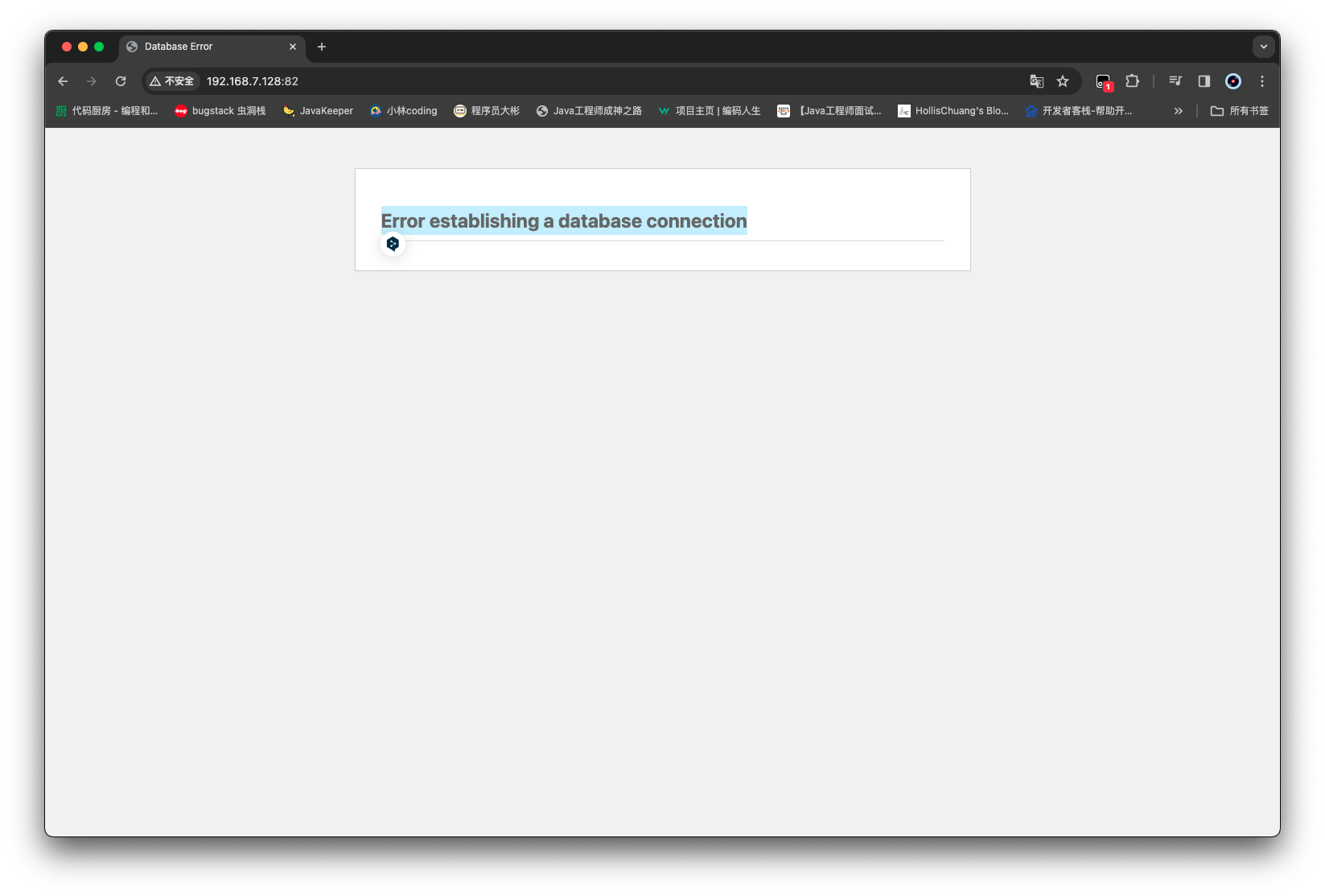
在浏览器输入主机 ip:82,可以进入 wordpress 页面

有这个问题 去解决一下,需要连接一下对应的 mysql 数据库创建一下这个库

1
2
3
4
5
6
7
8
9
10
11
12
13
14
15
16
17
18
19
20
21
22
23
24
25
26
27
28
29
30
31
32
33
34
35
36
37
38
39
40
root@ubuntu-server:~# docker inspect 6b07fc530884 | grep "IPAddress"
"SecondaryIPAddresses": null,
"IPAddress": "",
"IPAddress": "172.18.0.2",

root@ubuntu-server:~# mysql -h 172.18.0.2 -u root -p 123456
Enter password:
ERROR 1049 (42000): Unknown database '123456'
root@ubuntu-server:~# mysql -h 172.18.0.2 -u root -p123456
mysql: [Warning] Using a password on the command line interface can be insecure.
Welcome to the MySQL monitor. Commands end with ; or \g.
Your MySQL connection id is 81
Server version: 8.3.0 MySQL Community Server - GPL

Copyright (c) 2000, 2023, Oracle and/or its affiliates.

Oracle is a registered trademark of Oracle Corporation and/or its
affiliates. Other names may be trademarks of their respective
owners.

Type 'help;' or '\h' for help. Type '\c' to clear the current input statement.

mysql> show databases;
+--------------------+
| Database |
+--------------------+
| db_in_opt |
| information_schema |
| mysql |
| performance_schema |
| sys |
+--------------------+
5 rows in set (0.03 sec)

mysql> create database wordpressdb;
Query OK, 1 row affected (0.02 sec)

mysql> exit;
Bye
root@ubuntu-server:~#

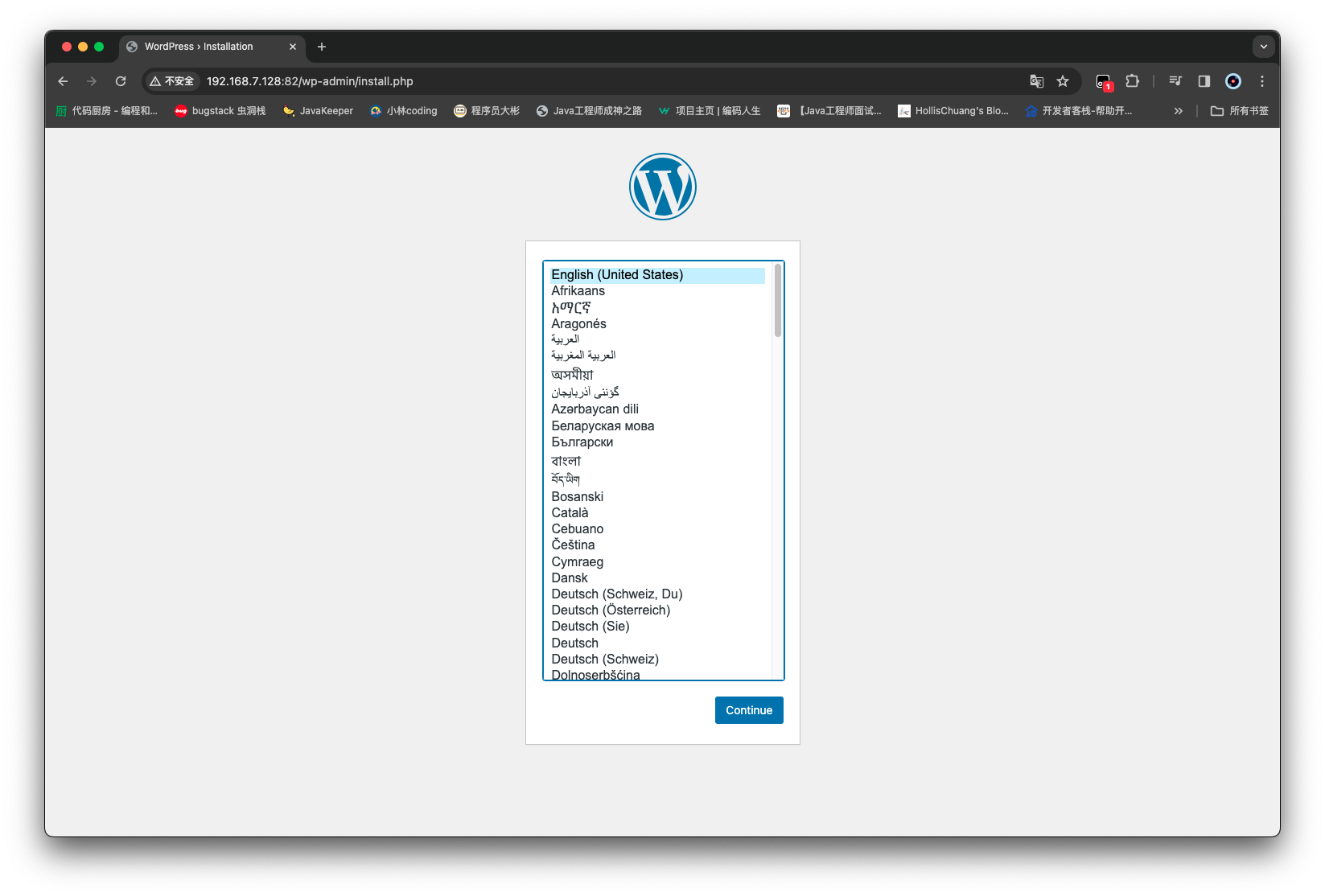
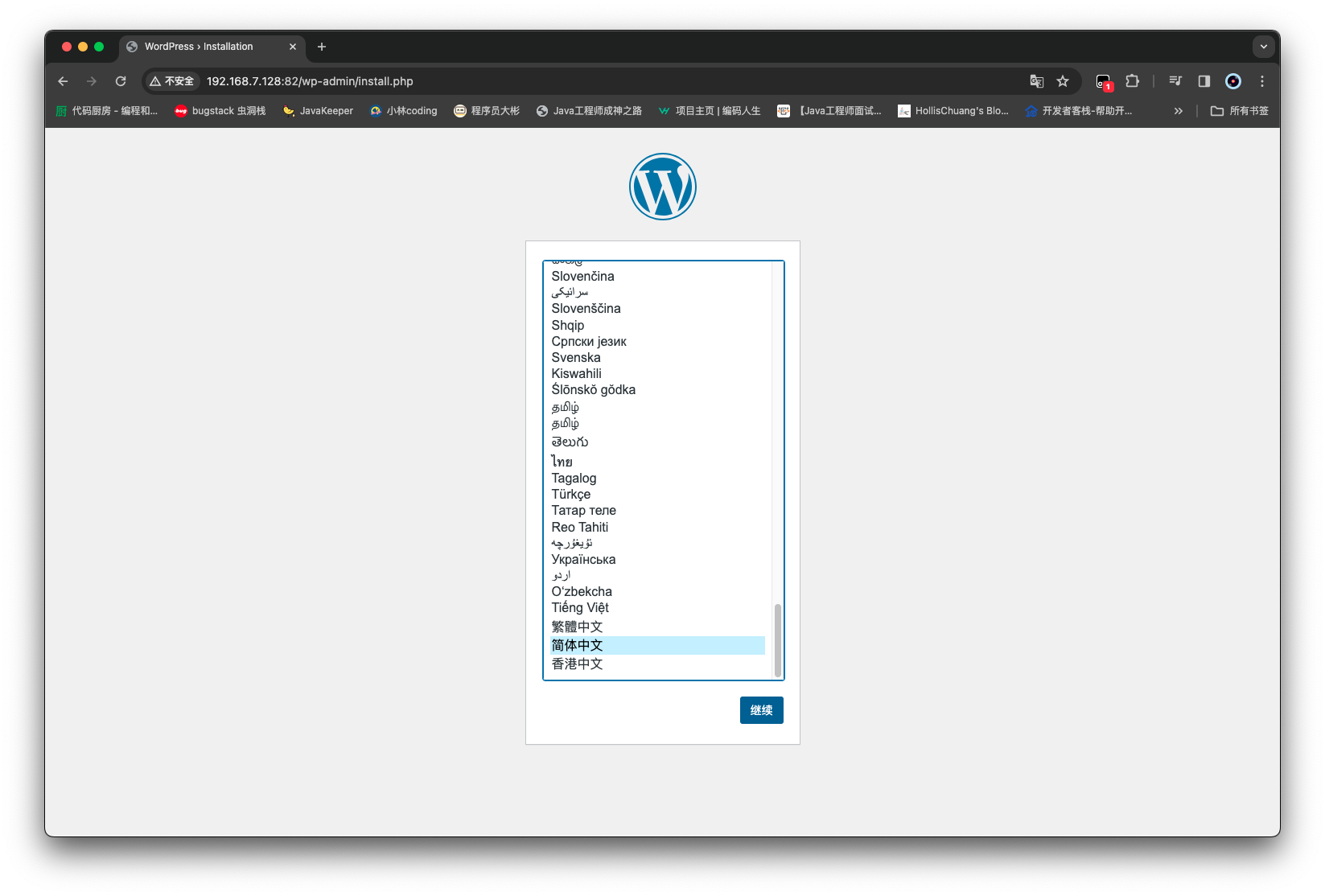
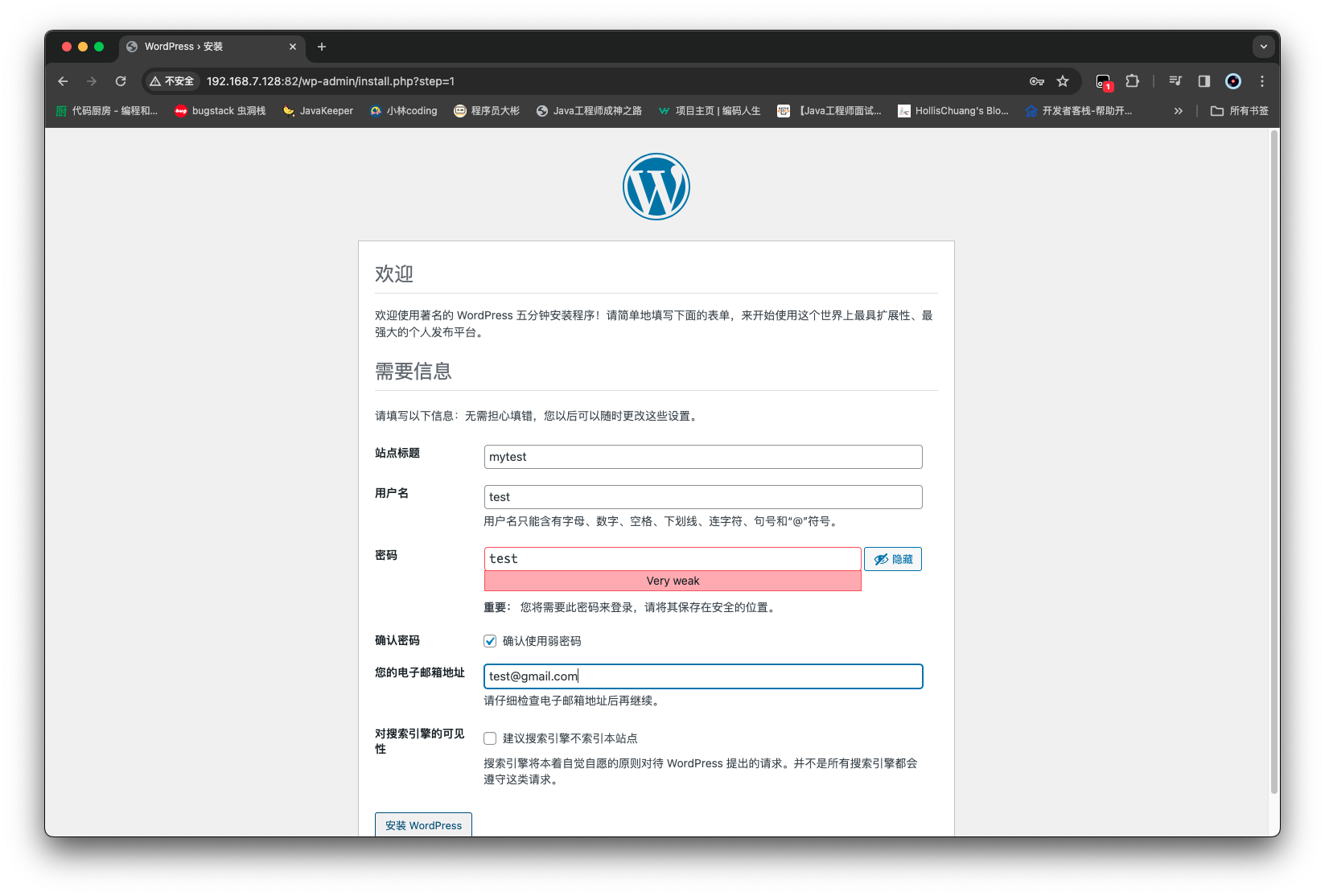
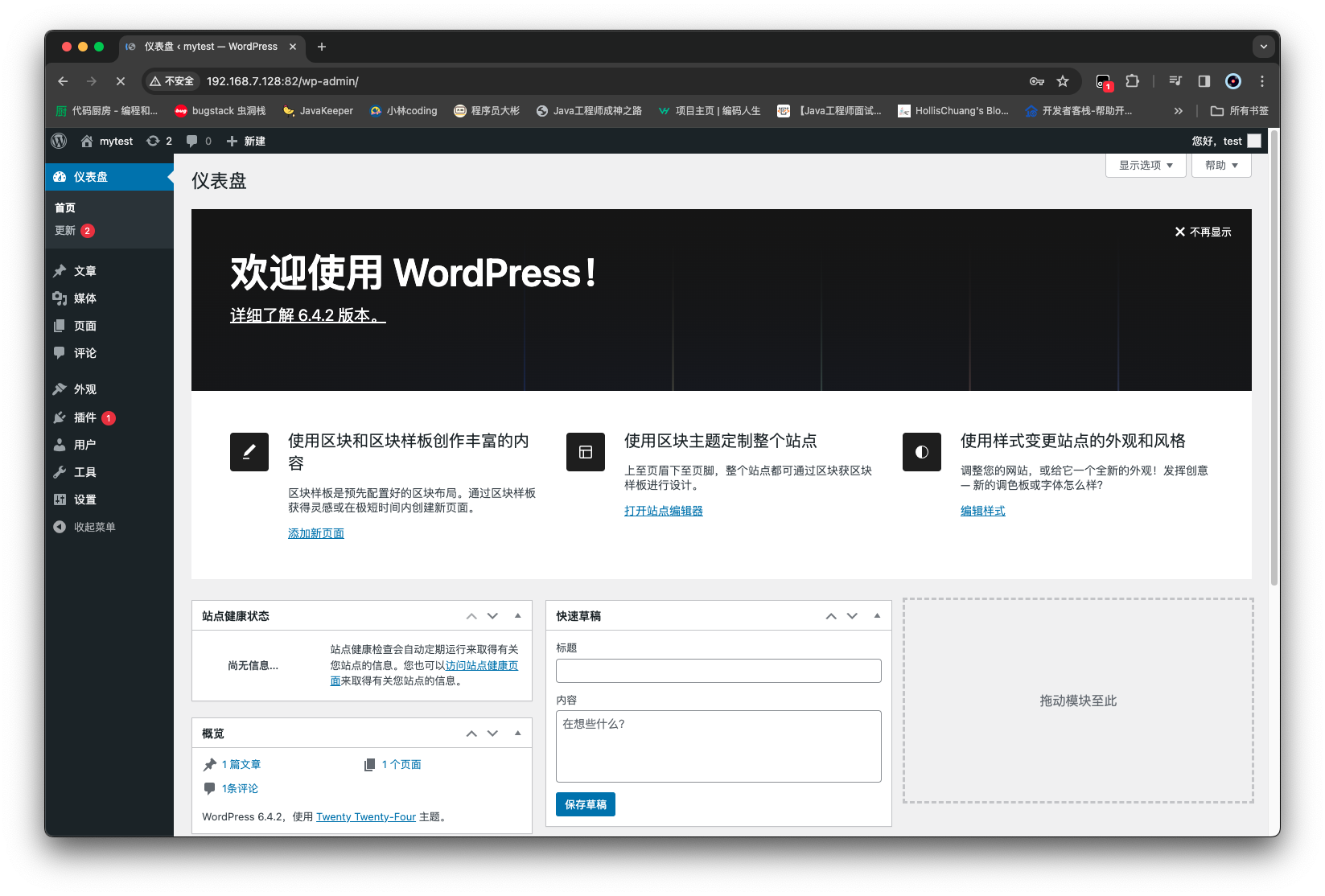
现在就可以啦,初步配置一下

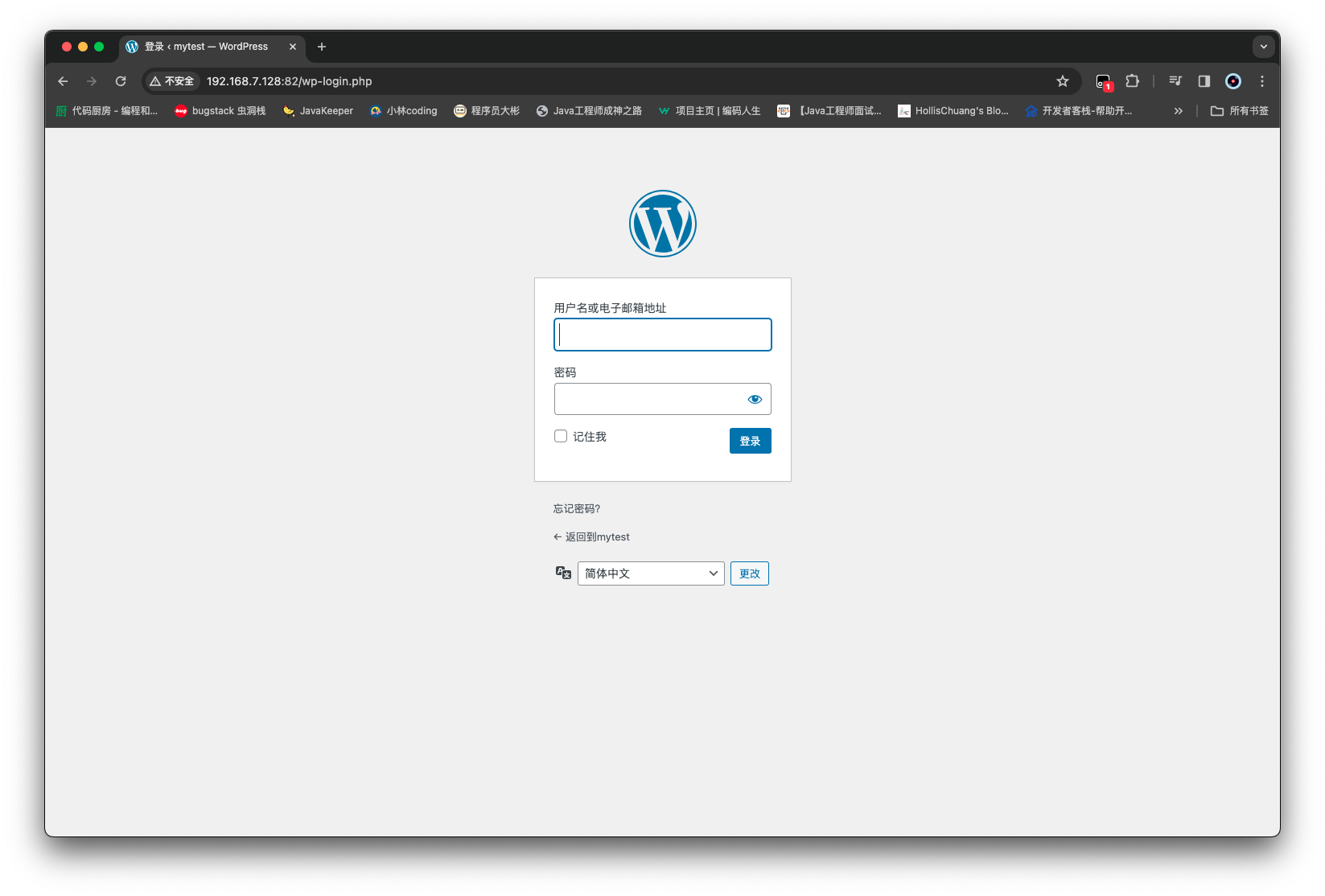
用刚才的用户名和密码进行登录,就进入到后台
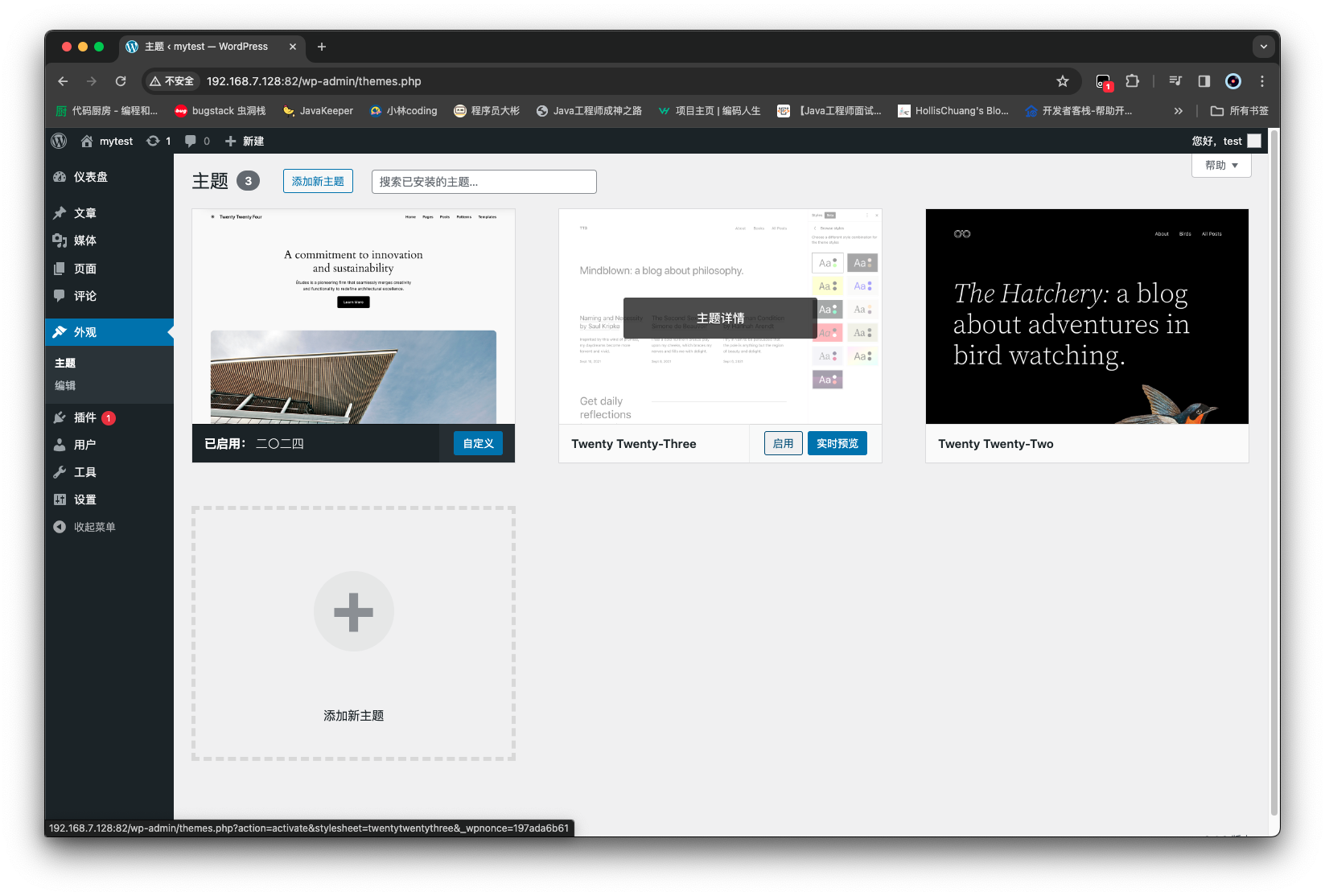
比如我们修改一下外观
这个时候用自己的服务器主机的 ip+82,可以访问到主页

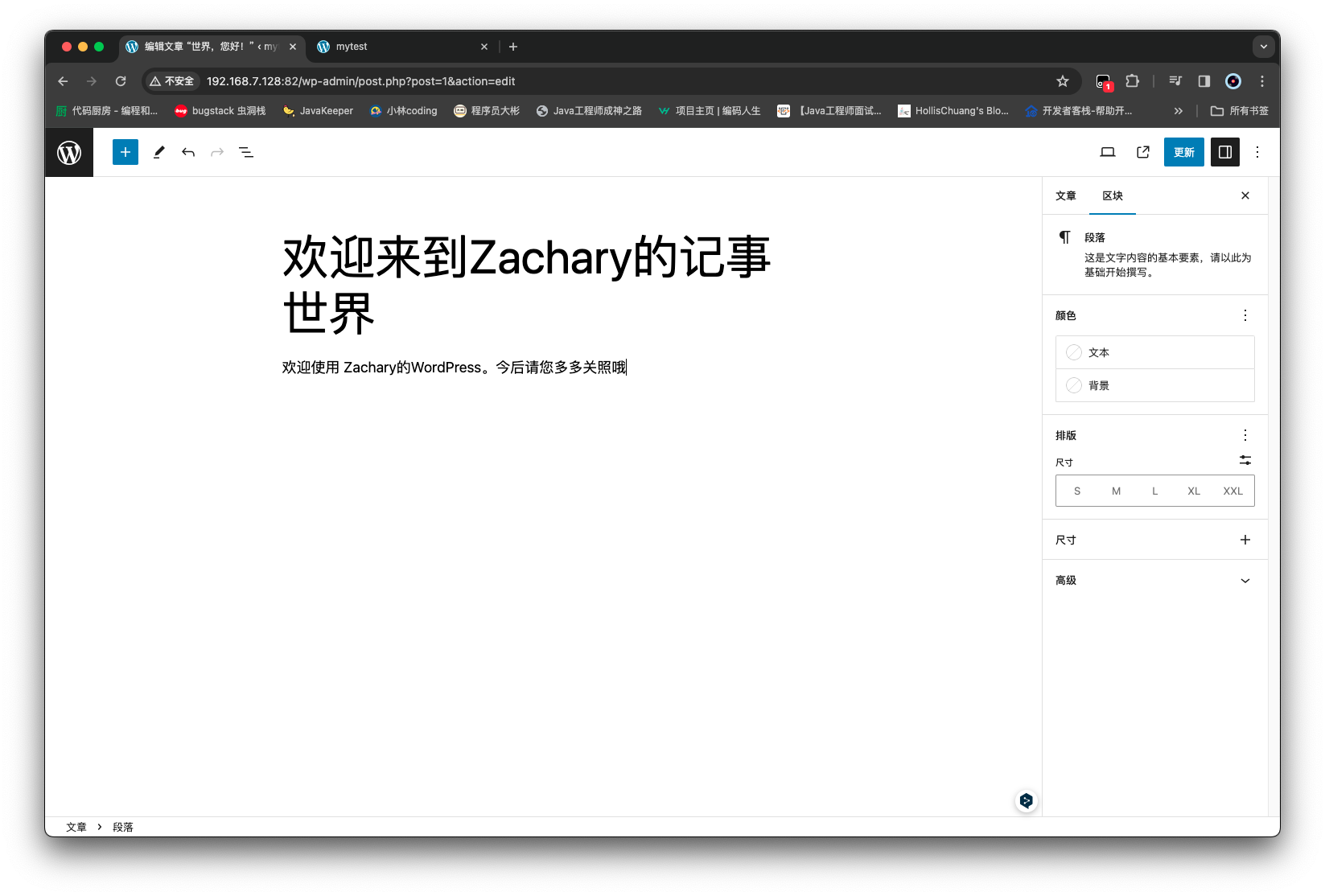
可以对文章进行编辑
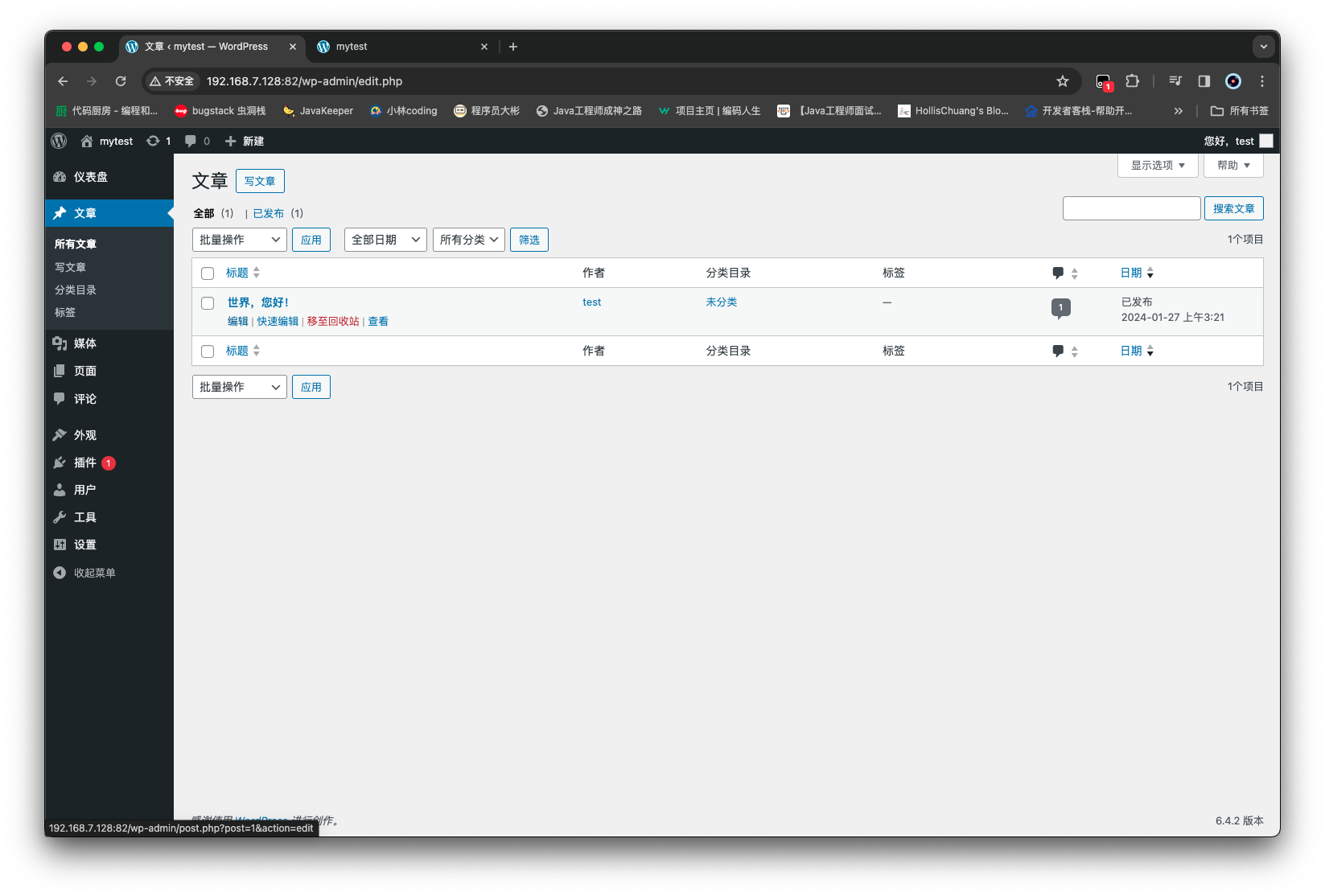
然后可以查看到效果

Compose

用于定义和运行多容器的工具,简化上一节中讲到的多容器互联复杂的命令输入环节

  • 通过 YAML 文件的格式定义多容器关系

安装 docker compose

  • Mac 和 Windows 下的 docker 默认已经安装了 docker compose
  • Linux 下的 ubuntu 安装 docker compose
    • apt-get install docker-compose

1
2
root@ubuntu-server:~# docker-compose --version
docker-compose version 1.25.0, build unknown

定义 Docker Compose 多容器

创建一个 docker-compose.yaml 文件

1
2
3
4
5
6
7
8
9
10
11
12
13
14
15
16
17
18
19
20
21
version: "3.8"
services:
wordpress_server:
image: wordpress
ports:
- "82:80"
links:
- mysql_server
environment:
WORDPRESS_DB_HOST: mysql_server
WORDPRESS_DB_NAME: wordpressdb
WORDPRESS_DB_USER: root
WORDPRESS_DB_PASSWORD: 123456

mysql_server:
image: mysql
volumes:
- /opt/mysql:/var/lib/mysql
environment:
MYSQL_ROOT_PASSWORD: 123456
MYSQL_DATABASE: wordpressdb
1
2
3
4
5
6
7
8
9
10
11
12
13
14
15
16
17
18
19
20
21
22
23
24
25
26
27
28
29
30
root@ubuntu-server:~# ls
docker.cnf dockerDIYImage pythonProject snap
root@ubuntu-server:~# mkdir dockerProject
root@ubuntu-server:~# cd dockerProject/
root@ubuntu-server:~/dockerProject# mkdir myWebSite
root@ubuntu-server:~/dockerProject# cd myWebSite/

root@ubuntu-server:~/dockerProject/myWebSite# nano docker-compose.yaml
root@ubuntu-server:~/dockerProject/myWebSite# cat docker-compose.yaml
version: '3.8'
services:
wordpress_server:
image: wordpress
ports:
- "82:80"
links:
- mysql_server
environment:
WORDPRESS_DB_HOST: mysql_server
WORDPRESS_DB_NAME: wordpressdb
WORDPRESS_DB_USER: root
WORDPRESS_DB_PASSWORD: 123456

mysql_server:
image: mysql
volumes:
- /opt/mysql:/var/lib/mysql
environment:
MYSQL_ROOT_PASSWORD: 123456
MYSQL_DATABASE: wordpressdb

启动与停止 Docker Compose

  • docker compose up 启动
  • docker compose down 停止
1
2
3
4
5
6
7
8
9
10
11
12
13
14
15
16
17
18
19
20
21
22
23
24
25
root@ubuntu-server:~/dockerProject/myWebSite# docker compose up
[+] Running 2/0
✔ Container mywebsite-mysql_server-1 Created 0.0s
✔ Container mywebsite-wordpress_server-1 Created 0.0s
Attaching to mywebsite-mysql_server-1, mywebsite-wordpress_server-1
mywebsite-mysql_server-1 | 2024-01-27 13:00:05+00:00 [Note] [Entrypoint]: Entrypoint script for MySQL Server 8.3.0-1.el8 started.
mywebsite-mysql_server-1 | 2024-01-27 13:00:05+00:00 [Note] [Entrypoint]: Switching to dedicated user 'mysql'
mywebsite-mysql_server-1 | 2024-01-27 13:00:05+00:00 [Note] [Entrypoint]: Entrypoint script for MySQL Server 8.3.0-1.el8 started.
mywebsite-wordpress_server-1 | WordPress not found in /var/www/html - copying now...
mywebsite-mysql_server-1 | '/var/lib/mysql/mysql.sock' -> '/var/run/mysqld/mysqld.sock'
mywebsite-mysql_server-1 | 2024-01-27T13:00:06.091635Z 0 [System] [MY-015015] [Server] MySQL Server - start.
mywebsite-mysql_server-1 | 2024-01-27T13:00:06.480419Z 0 [System] [MY-010116] [Server] /usr/sbin/mysqld (mysqld 8.3.0) starting as process 1
mywebsite-mysql_server-1 | 2024-01-27T13:00:06.491181Z 1 [System] [MY-013576] [InnoDB] InnoDB initialization has started.
mywebsite-mysql_server-1 | 2024-01-27T13:00:07.542230Z 1 [System] [MY-013577] [InnoDB] InnoDB initialization has ended.
mywebsite-mysql_server-1 | 2024-01-27T13:00:08.337107Z 0 [Warning] [MY-010068] [Server] CA certificate ca.pem is self signed.
mywebsite-mysql_server-1 | 2024-01-27T13:00:08.338334Z 0 [System] [MY-013602] [Server] Channel mysql_main configured to support TLS. Encrypted connections are now supported for this channel.
mywebsite-mysql_server-1 | 2024-01-27T13:00:08.342758Z 0 [Warning] [MY-011810] [Server] Insecure configuration for --pid-file: Location '/var/run/mysqld' in the path is accessible to all OS users. Consider choosing a different directory.
mywebsite-mysql_server-1 | 2024-01-27T13:00:08.455139Z 0 [System] [MY-011323] [Server] X Plugin ready for connections. Bind-address: '::' port: 33060, socket: /var/run/mysqld/mysqlx.sock
mywebsite-mysql_server-1 | 2024-01-27T13:00:08.457193Z 0 [System] [MY-010931] [Server] /usr/sbin/mysqld: ready for connections. Version: '8.3.0' socket: '/var/run/mysqld/mysqld.sock' port: 3306 MySQL Community Server - GPL.
mywebsite-wordpress_server-1 | Complete! WordPress has been successfully copied to /var/www/html
mywebsite-wordpress_server-1 | No 'wp-config.php' found in /var/www/html, but 'WORDPRESS_...' variables supplied; copying 'wp-config-docker.php' (WORDPRESS_DB_HOST WORDPRESS_DB_NAME WORDPRESS_DB_PASSWORD WORDPRESS_DB_USER)
mywebsite-wordpress_server-1 | AH00558: apache2: Could not reliably determine the server's fully qualified domain name, using 172.19.0.3. Set the 'ServerName' directive globally to suppress this message
mywebsite-wordpress_server-1 | [Sat Jan 27 13:00:10.346157 2024] [mpm_prefork:notice] [pid 1] AH00163: Apache/2.4.57 (Debian) PHP/8.2.15 configured -- resuming normal operations
mywebsite-wordpress_server-1 | [Sat Jan 27 13:00:10.347867 2024] [core:notice] [pid 1] AH00094: Command line: 'apache2 -D FOREGROUND'

启动之后可以直接使用浏览器访问服务器 ip+82,可以直接访问到上一节的服务,因为之前是映射了 mysql 数据到了服务器主机上面的,所以这次只要还是映射了,数据依然存在,当然如果删除掉了数据,就会重新创建

1
2
3
4
5
6
root@ubuntu-server:~/dockerProject/myWebSite# docker compose down
[+] Running 3/3
✔ Container mywebsite-wordpress_server-1 Removed 1.3s
✔ Container mywebsite-mysql_server-1 Removed 1.6s
✔ Network mywebsite_default Removed 0.1s
root@ubuntu-server:~/dockerProject/myWebSite#

构建自己的镜像启动多容器

1
2
3
4
5
6
7
8
9
10
11
12
13
14
15
16
FROM ubuntu

RUN apt update
RUN apt-get install -y python3 python3-pip
RUN apt-get install -y pkg-config
RUN apt-get install -y default-libmysqlclient-dev

COPY requirements.txt .

RUN pip3 install -r requirements.txt

COPY app.py /opt/app.py

WORKDIR /opt/

ENTRYPOINT ["python3","app.py"]
1
2
3
4
5
6
7
8
9
10
11
12
13
14
15
16
17
18
19
20
import sqlalchemy
import os

DB_HOST = os.getenv("DB_HOST")
DB_USER = os.getenv("DB_USER", "root")
DB_PASSWORD = os.getenv("DB_PASSWORD")
DB_PORT = os.getenv("DB_PORT","3306")
DB_DATABASE = os.getenv("DB_DATABASE","mydb")

engine = sqlalchemy.create_engine(f"mysql://{DB_USER}:{DB_PASSWORD}@{DB_HOST}/{DB_DATABASE}")
with engine.connect() as conn:
query = sqlalchemy.text("SELECT @@version")
result_set = conn.execute(query)

print("MySQL version:")
for row in result_set:
print(row)

engine.dispose()

1
2
3
4
5
6
7
8
9
10
11
12
13
14
15
16
17
18
19
20
21
22
23
24
25
26
27
28
29
version: "3.8"
services:
dbmanager_server:
build: .
image: dbmanager
container_name: dbmanager_server
links:
- mysql_server
environment:
DB_HOST: mysql_server
DB_NAME: mydb
DB_USER: root
DB_PASSWORD: 123456
depends_on:
mysql_server:
condition: service_healthy

mysql_server:
image: mysql
container_name: mysql_server
volumes:
- /opt/mysql:/var/lib/mysql
environment:
MYSQL_ROOT_PASSWORD: 123456
MYSQL_DATABASE: mydb
healthcheck:
test: ["CMD", "mysqladmin", "ping", "-h", "localhost"]
timeout: 20s
retries: 10
1
2
mysqlclient==2.1.1
SQLAlchemy==2.0.25

由于网络太慢了 修改一下 Dockerfile

1
2
3
4
5
6
7
8
9
10
11
12
13
14
15
FROM ubuntu

RUN apt update
RUN apt-get install -y python3 python3-pip
RUN apt-get install -y pkg-config
RUN apt-get install -y default-libmysqlclient-dev

RUN pip3 install -i http://mirrors.aliyun.com/pypi/simple/ --trusted-host mirrors.aliyun.com mysqlclient==2.1.1
RUN pip3 install -i http://mirrors.aliyun.com/pypi/simple/ --trusted-host mirrors.aliyun.com SQLAlchemy==2.0.25

COPY app.py /opt/app.py

WORKDIR /opt/

ENTRYPOINT ["python3","app.py"]

但是这时候还是出了问题,定位到最后是因为没有初始化 mydb 这个数据库

1
2
3
4
5
6
7
8
9
10
11
12
13
14
15
16
17
18
19
20
21
22
23
24
25
26
27
28
29
30
31
32
33
34
35
36
37
38
39
40
41
42
43
44
45
46
47
48
49
50
51
52
53
54
55
56
57
58
59
60
61
62
63
64
65
66
67
68
69
70
71
72
73
74
75
76
77
78
79
80
81
82
83
84
85
86
87
88
89
90
91
92
93
94
95
96
97
98
99
100
101
102
103
104
105
106
107
108
109
110
111
112
113
114
115
116
117
118
119
120
121
122
123
124
125
126
root@ubuntu-server:~/dockerProject/docker_dbmanager# docker compose up --build
[+] Building 18.5s (14/14) FINISHED docker:default
=> [dbmanager_server internal] load build definition from Dockerfile 0.0s
=> => transferring dockerfile: 492B 0.0s
=> [dbmanager_server internal] load metadata for docker.io/library/ubuntu:latest 0.0s
=> [dbmanager_server internal] load .dockerignore 0.0s
=> => transferring context: 2B 0.0s
=> [dbmanager_server 1/9] FROM docker.io/library/ubuntu:latest 0.0s
=> [dbmanager_server internal] load build context 0.0s
=> => transferring context: 28B 0.0s
=> CACHED [dbmanager_server 2/9] RUN apt update 0.0s
=> CACHED [dbmanager_server 3/9] RUN apt-get install -y python3 python3-pip 0.0s
=> CACHED [dbmanager_server 4/9] RUN apt-get install -y pkg-config 0.0s
=> CACHED [dbmanager_server 5/9] RUN apt-get install -y default-libmysqlclient-dev 0.0s
=> [dbmanager_server 6/9] RUN pip3 install -i http://mirrors.aliyun.com/pypi/simple/ --trusted-host mirrors.aliyun.com mysqlc 4.7s
=> [dbmanager_server 7/9] RUN pip3 install -i http://mirrors.aliyun.com/pypi/simple/ --trusted-host mirrors.aliyun.com SQLAlc 7.0s
=> [dbmanager_server 8/9] COPY app.py /opt/app.py 0.1s
=> [dbmanager_server 9/9] WORKDIR /opt/ 0.0s
=> [dbmanager_server] exporting to image 6.6s
=> => exporting layers 6.6s
=> => writing image sha256:8cea6473ccddbca8135c6c55eab4151d8414a019820618b97c02d468d2487062 0.0s
=> => naming to docker.io/library/dbmanager 0.0s
[+] Running 3/3
✔ Network docker_dbmanager_default Created 0.1s
✔ Container mysql_server Created 0.1s
✔ Container dbmanager_server Created 0.1s
Attaching to dbmanager_server, mysql_server
mysql_server | 2024-01-27 14:17:26+00:00 [Note] [Entrypoint]: Entrypoint script for MySQL Server 8.3.0-1.el8 started.
mysql_server | 2024-01-27 14:17:26+00:00 [Note] [Entrypoint]: Switching to dedicated user 'mysql'
mysql_server | 2024-01-27 14:17:26+00:00 [Note] [Entrypoint]: Entrypoint script for MySQL Server 8.3.0-1.el8 started.
mysql_server | '/var/lib/mysql/mysql.sock' -> '/var/run/mysqld/mysqld.sock'
mysql_server | 2024-01-27T14:17:27.000913Z 0 [System] [MY-015015] [Server] MySQL Server - start.
mysql_server | 2024-01-27T14:17:29.465711Z 0 [System] [MY-010116] [Server] /usr/sbin/mysqld (mysqld 8.3.0) starting as process 1
mysql_server | 2024-01-27T14:17:29.600266Z 1 [System] [MY-013576] [InnoDB] InnoDB initialization has started.
mysql_server | 2024-01-27T14:17:30.775812Z 1 [System] [MY-013577] [InnoDB] InnoDB initialization has ended.
mysql_server | 2024-01-27T14:17:32.112855Z 0 [Warning] [MY-010068] [Server] CA certificate ca.pem is self signed.
mysql_server | 2024-01-27T14:17:32.112944Z 0 [System] [MY-013602] [Server] Channel mysql_main configured to support TLS. Encrypted connections are now supported for this channel.
mysql_server | 2024-01-27T14:17:32.117128Z 0 [Warning] [MY-011810] [Server] Insecure configuration for --pid-file: Location '/var/run/mysqld' in the path is accessible to all OS users. Consider choosing a different directory.
mysql_server | 2024-01-27T14:17:32.180029Z 0 [System] [MY-011323] [Server] X Plugin ready for connections. Bind-address: '::' port: 33060, socket: /var/run/mysqld/mysqlx.sock
mysql_server | 2024-01-27T14:17:32.180109Z 0 [System] [MY-010931] [Server] /usr/sbin/mysqld: ready for connections. Version: '8.3.0' socket: '/var/run/mysqld/mysqld.sock' port: 3306 MySQL Community Server - GPL.
dbmanager_server | Traceback (most recent call last):
dbmanager_server | File "/usr/local/lib/python3.10/dist-packages/sqlalchemy/engine/base.py", line 145, in __init__
dbmanager_server | self._dbapi_connection = engine.raw_connection()
dbmanager_server | File "/usr/local/lib/python3.10/dist-packages/sqlalchemy/engine/base.py", line 3293, in raw_connection
dbmanager_server | return self.pool.connect()
dbmanager_server | File "/usr/local/lib/python3.10/dist-packages/sqlalchemy/pool/base.py", line 452, in connect
dbmanager_server | return _ConnectionFairy._checkout(self)
dbmanager_server | File "/usr/local/lib/python3.10/dist-packages/sqlalchemy/pool/base.py", line 1269, in _checkout
dbmanager_server | fairy = _ConnectionRecord.checkout(pool)
dbmanager_server | File "/usr/local/lib/python3.10/dist-packages/sqlalchemy/pool/base.py", line 716, in checkout
dbmanager_server | rec = pool._do_get()
dbmanager_server | File "/usr/local/lib/python3.10/dist-packages/sqlalchemy/pool/impl.py", line 169, in _do_get
dbmanager_server | with util.safe_reraise():
dbmanager_server | File "/usr/local/lib/python3.10/dist-packages/sqlalchemy/util/langhelpers.py", line 146, in __exit__
dbmanager_server | raise exc_value.with_traceback(exc_tb)
dbmanager_server | File "/usr/local/lib/python3.10/dist-packages/sqlalchemy/pool/impl.py", line 167, in _do_get
dbmanager_server | return self._create_connection()
dbmanager_server | File "/usr/local/lib/python3.10/dist-packages/sqlalchemy/pool/base.py", line 393, in _create_connection
dbmanager_server | return _ConnectionRecord(self)
dbmanager_server | File "/usr/local/lib/python3.10/dist-packages/sqlalchemy/pool/base.py", line 678, in __init__
dbmanager_server | self.__connect()
dbmanager_server | File "/usr/local/lib/python3.10/dist-packages/sqlalchemy/pool/base.py", line 902, in __connect
dbmanager_server | with util.safe_reraise():
dbmanager_server | File "/usr/local/lib/python3.10/dist-packages/sqlalchemy/util/langhelpers.py", line 146, in __exit__
dbmanager_server | raise exc_value.with_traceback(exc_tb)
dbmanager_server | File "/usr/local/lib/python3.10/dist-packages/sqlalchemy/pool/base.py", line 898, in __connect
dbmanager_server | self.dbapi_connection = connection = pool._invoke_creator(self)
dbmanager_server | File "/usr/local/lib/python3.10/dist-packages/sqlalchemy/engine/create.py", line 645, in connect
dbmanager_server | return dialect.connect(*cargs, **cparams)
dbmanager_server | File "/usr/local/lib/python3.10/dist-packages/sqlalchemy/engine/default.py", line 616, in connect
dbmanager_server | return self.loaded_dbapi.connect(*cargs, **cparams)
dbmanager_server | File "/usr/local/lib/python3.10/dist-packages/MySQLdb/__init__.py", line 123, in Connect
dbmanager_server | return Connection(*args, **kwargs)
dbmanager_server | File "/usr/local/lib/python3.10/dist-packages/MySQLdb/connections.py", line 185, in __init__
dbmanager_server | super().__init__(*args, **kwargs2)
dbmanager_server | MySQLdb.OperationalError: (1049, "Unknown database 'mydb'")
dbmanager_server |
dbmanager_server | The above exception was the direct cause of the following exception:
dbmanager_server |
dbmanager_server | Traceback (most recent call last):
dbmanager_server | File "/opt/app.py", line 11, in <module>
dbmanager_server | with engine.connect() as conn:
dbmanager_server | File "/usr/local/lib/python3.10/dist-packages/sqlalchemy/engine/base.py", line 3269, in connect
dbmanager_server | return self._connection_cls(self)
dbmanager_server | File "/usr/local/lib/python3.10/dist-packages/sqlalchemy/engine/base.py", line 147, in __init__
dbmanager_server | Connection._handle_dbapi_exception_noconnection(
dbmanager_server | File "/usr/local/lib/python3.10/dist-packages/sqlalchemy/engine/base.py", line 2431, in _handle_dbapi_exception_noconnection
dbmanager_server | raise sqlalchemy_exception.with_traceback(exc_info[2]) from e
dbmanager_server | File "/usr/local/lib/python3.10/dist-packages/sqlalchemy/engine/base.py", line 145, in __init__
dbmanager_server | self._dbapi_connection = engine.raw_connection()
dbmanager_server | File "/usr/local/lib/python3.10/dist-packages/sqlalchemy/engine/base.py", line 3293, in raw_connection
dbmanager_server | return self.pool.connect()
dbmanager_server | File "/usr/local/lib/python3.10/dist-packages/sqlalchemy/pool/base.py", line 452, in connect
dbmanager_server | return _ConnectionFairy._checkout(self)
dbmanager_server | File "/usr/local/lib/python3.10/dist-packages/sqlalchemy/pool/base.py", line 1269, in _checkout
dbmanager_server | fairy = _ConnectionRecord.checkout(pool)
dbmanager_server | File "/usr/local/lib/python3.10/dist-packages/sqlalchemy/pool/base.py", line 716, in checkout
dbmanager_server | rec = pool._do_get()
dbmanager_server | File "/usr/local/lib/python3.10/dist-packages/sqlalchemy/pool/impl.py", line 169, in _do_get
dbmanager_server | with util.safe_reraise():
dbmanager_server | File "/usr/local/lib/python3.10/dist-packages/sqlalchemy/util/langhelpers.py", line 146, in __exit__
dbmanager_server | raise exc_value.with_traceback(exc_tb)
dbmanager_server | File "/usr/local/lib/python3.10/dist-packages/sqlalchemy/pool/impl.py", line 167, in _do_get
dbmanager_server | return self._create_connection()
dbmanager_server | File "/usr/local/lib/python3.10/dist-packages/sqlalchemy/pool/base.py", line 393, in _create_connection
dbmanager_server | return _ConnectionRecord(self)
dbmanager_server | File "/usr/local/lib/python3.10/dist-packages/sqlalchemy/pool/base.py", line 678, in __init__
dbmanager_server | self.__connect()
dbmanager_server | File "/usr/local/lib/python3.10/dist-packages/sqlalchemy/pool/base.py", line 902, in __connect
dbmanager_server | with util.safe_reraise():
dbmanager_server | File "/usr/local/lib/python3.10/dist-packages/sqlalchemy/util/langhelpers.py", line 146, in __exit__
dbmanager_server | raise exc_value.with_traceback(exc_tb)
dbmanager_server | File "/usr/local/lib/python3.10/dist-packages/sqlalchemy/pool/base.py", line 898, in __connect
dbmanager_server | self.dbapi_connection = connection = pool._invoke_creator(self)
dbmanager_server | File "/usr/local/lib/python3.10/dist-packages/sqlalchemy/engine/create.py", line 645, in connect
dbmanager_server | return dialect.connect(*cargs, **cparams)
dbmanager_server | File "/usr/local/lib/python3.10/dist-packages/sqlalchemy/engine/default.py", line 616, in connect
dbmanager_server | return self.loaded_dbapi.connect(*cargs, **cparams)
dbmanager_server | File "/usr/local/lib/python3.10/dist-packages/MySQLdb/__init__.py", line 123, in Connect
dbmanager_server | return Connection(*args, **kwargs)
dbmanager_server | File "/usr/local/lib/python3.10/dist-packages/MySQLdb/connections.py", line 185, in __init__
dbmanager_server | super().__init__(*args, **kwargs2)
dbmanager_server | sqlalchemy.exc.OperationalError: (MySQLdb.OperationalError) (1049, "Unknown database 'mydb'")
dbmanager_server | (Background on this error at: https://sqlalche.me/e/20/e3q8)
dbmanager_server exited with code 1

我们不关闭这个,重新开一个终端

1
2
3
4
5
6
7
8
9
10
11
12
13
14
15
16
17
18
19
20
21
22
23
24
25
26
27
28
29
30
31
32
33
34
35
36
37
38
39
root@ubuntu-server:~/dockerProject/docker_dbmanager# docker ps -a
CONTAINER ID IMAGE COMMAND CREATED STATUS PORTS NAMES
0d96a20ca121 dbmanager "python3 app.py" 7 minutes ago Exited (1) 6 minutes ago dbmanager_server
da8ce1fc7a59 mysql "docker-entrypoint.s…" 7 minutes ago Up 7 minutes (healthy) 3306/tcp, 33060/tcp mysql_server
root@ubuntu-server:~/dockerProject/docker_dbmanager# docker inspect da8ce1fc7a59 | grep "IPAddress"
"SecondaryIPAddresses": null,
"IPAddress": "",
"IPAddress": "172.20.0.2",
root@ubuntu-server:~/dockerProject/docker_dbmanager# mysql -h 172.20.0.2 -u root -p123456
mysql: [Warning] Using a password on the command line interface can be insecure.
Welcome to the MySQL monitor. Commands end with ; or \g.
Your MySQL connection id is 23
Server version: 8.3.0 MySQL Community Server - GPL

Copyright (c) 2000, 2023, Oracle and/or its affiliates.

Oracle is a registered trademark of Oracle Corporation and/or its
affiliates. Other names may be trademarks of their respective
owners.

Type 'help;' or '\h' for help. Type '\c' to clear the current input statement.

mysql> show databases;
+--------------------+
| Database |
+--------------------+
| db_in_opt |
| information_schema |
| mysql |
| performance_schema |
| sys |
| wordpressdb |
+--------------------+
6 rows in set (0.06 sec)

mysql> create database mydb;
Query OK, 1 row affected (0.02 sec)

mysql>

然后重新执行一次拉起操作

1
2
3
4
5
6
7
8
9
10
11
12
13
14
15
16
17
18
19
20
21
22
23
24
25
26
27
28
29
30
31
32
33
34
35
36
37
38
39
40
41
42
43
root@ubuntu-server:~/dockerProject/docker_dbmanager# docker compose up --build
[+] Building 0.1s (14/14) FINISHED docker:default
=> [dbmanager_server internal] load build definition from Dockerfile 0.0s
=> => transferring dockerfile: 492B 0.0s
=> [dbmanager_server internal] load metadata for docker.io/library/ubuntu:latest 0.0s
=> [dbmanager_server internal] load .dockerignore 0.0s
=> => transferring context: 2B 0.0s
=> [dbmanager_server 1/9] FROM docker.io/library/ubuntu:latest 0.0s
=> [dbmanager_server internal] load build context 0.0s
=> => transferring context: 28B 0.0s
=> CACHED [dbmanager_server 2/9] RUN apt update 0.0s
=> CACHED [dbmanager_server 3/9] RUN apt-get install -y python3 python3-pip 0.0s
=> CACHED [dbmanager_server 4/9] RUN apt-get install -y pkg-config 0.0s
=> CACHED [dbmanager_server 5/9] RUN apt-get install -y default-libmysqlclient-dev 0.0s
=> CACHED [dbmanager_server 6/9] RUN pip3 install -i http://mirrors.aliyun.com/pypi/simple/ --trusted-host mirrors.aliyun.com 0.0s
=> CACHED [dbmanager_server 7/9] RUN pip3 install -i http://mirrors.aliyun.com/pypi/simple/ --trusted-host mirrors.aliyun.com 0.0s
=> CACHED [dbmanager_server 8/9] COPY app.py /opt/app.py 0.0s
=> CACHED [dbmanager_server 9/9] WORKDIR /opt/ 0.0s
=> [dbmanager_server] exporting to image 0.0s
=> => exporting layers 0.0s
=> => writing image sha256:8cea6473ccddbca8135c6c55eab4151d8414a019820618b97c02d468d2487062 0.0s
=> => naming to docker.io/library/dbmanager 0.0s
[+] Running 2/2
✔ Container mysql_server Created 0.1s
✔ Container dbmanager_server Created 0.1s
Attaching to dbmanager_server, mysql_server
mysql_server | 2024-01-27 14:30:00+00:00 [Note] [Entrypoint]: Entrypoint script for MySQL Server 8.3.0-1.el8 started.
mysql_server | 2024-01-27 14:30:00+00:00 [Note] [Entrypoint]: Switching to dedicated user 'mysql'
mysql_server | 2024-01-27 14:30:00+00:00 [Note] [Entrypoint]: Entrypoint script for MySQL Server 8.3.0-1.el8 started.
mysql_server | '/var/lib/mysql/mysql.sock' -> '/var/run/mysqld/mysqld.sock'
mysql_server | 2024-01-27T14:30:00.772229Z 0 [System] [MY-015015] [Server] MySQL Server - start.
mysql_server | 2024-01-27T14:30:01.134172Z 0 [System] [MY-010116] [Server] /usr/sbin/mysqld (mysqld 8.3.0) starting as process 1
mysql_server | 2024-01-27T14:30:01.143974Z 1 [System] [MY-013576] [InnoDB] InnoDB initialization has started.
mysql_server | 2024-01-27T14:30:01.392854Z 1 [System] [MY-013577] [InnoDB] InnoDB initialization has ended.
mysql_server | 2024-01-27T14:30:01.675451Z 0 [Warning] [MY-010068] [Server] CA certificate ca.pem is self signed.
mysql_server | 2024-01-27T14:30:01.676409Z 0 [System] [MY-013602] [Server] Channel mysql_main configured to support TLS. Encrypted connections are now supported for this channel.
mysql_server | 2024-01-27T14:30:01.679979Z 0 [Warning] [MY-011810] [Server] Insecure configuration for --pid-file: Location '/var/run/mysqld' in the path is accessible to all OS users. Consider choosing a different directory.
mysql_server | 2024-01-27T14:30:01.716925Z 0 [System] [MY-010931] [Server] /usr/sbin/mysqld: ready for connections. Version: '8.3.0' socket: '/var/run/mysqld/mysqld.sock' port: 3306 MySQL Community Server - GPL.
mysql_server | 2024-01-27T14:30:01.716968Z 0 [System] [MY-011323] [Server] X Plugin ready for connections. Bind-address: '::' port: 33060, socket: /var/run/mysqld/mysqlx.sock
dbmanager_server | MySQL version:
dbmanager_server | ('8.3.0',)
dbmanager_server exited with code 0

最后可以停掉这个多容器

1
2
3
4
5
6
7
8
root@ubuntu-server:~/dockerProject/docker_dbmanager# docker compose down
[+] Running 3/3
✔ Container dbmanager_server Removed 0.0s
✔ Container mysql_server Removed 1.4s
✔ Network docker_dbmanager_default Removed 0.2s
root@ubuntu-server:~/dockerProject/docker_dbmanager# docker ps -a
CONTAINER ID IMAGE COMMAND CREATED STATUS PORTS NAMES
root@ubuntu-server:~/dockerProject/docker_dbmanager#

Docker Image 相关命令速查

  • docker search [镜像名称] 查找镜像信息
  • docker pull [镜像名称] 拉取镜像
  • docker image ls docker images 查看镜像列表
  • docker rmi [镜像名称/镜像ID] 删除镜像
  • docker save -o [输出文件名] [镜像名称/镜像ID] 将镜像保存为文件,便于传输镜像
  • docker save --output [输出文件名] [镜像名称/镜像ID]
  • docker save [镜像名称/镜像ID] > [输出文件名]
  • docker load -i [镜像文件] 将文件加载为镜像 Image
  • docker load --input [镜像文件]
  • docker load < [镜像文件]
  • docker build . -t [构建的镜像名称] 自定义镜像 默认找当前目录下 Dockerfile
  • docker build -f [Dockerfile文件名] -t [构建的镜像名称] [Dockerfile所在目录]

Docker Container 相关命令速查

  • docker run
    • --pull [missing/never/always]
      • missing 每次运行时候如果没有镜像就拉去 如果有就不拉取 默认也就是 missing 模式
      • never 每次运行的时候都不去拉取镜像
      • always 每次运行的时候都去拉取一次镜像
    • -i 以交互的方式运行
    • -t 输出到控制台
    • -it 经常这样用
    • -rm 容器停止以后直接删除
    • -v [主机路径]:[容器内部路径] 做目录映射的,MySQL 常用避免容器删除后数据清空了
    • -p [主机端口]:[容器端口] 端口映射,通过主机的端口来访问容器端口的服务
    • -e(--env) [环境变量] 配置环境变量,如 MySQL 的登录名、端口、密码等
    • --env-file [环境变量定义文件] 配置环境变量定义文件
    • --network [加入的网络名称] --network-alias [容器在网络中的别名] 网络与别名
    • --name [容器名称]
    • [镜像名称]
    • [命令] 容器启动后的命令
  • docker ps 查看本地运行的容器
  • docker ps -a 查看本地所有的容器
  • docker stop [容器ID] 停止一个正在运行的容器
  • docker start [容器ID] 启动一个已经停止了的容器
  • docker restart [容器ID] 重启一个容器
  • docker kill [容器ID]
  • docker rm [容器ID] 删除容器
  • docker attach [容器ID] 重新在控制台显示容器输出的内容 有时候以-d 运行的容器 后续内容不会打印
  • docker history [容器名称] 查看执行该容器的历史命令
  • docker exec -d [容器名称/容器ID] [要执行的命令] 对某个容器执行一条命令,但看不见后续内容
  • docker exec -it [容器名称/容器ID] [要执行的命令(常用bash进入交互)]
  • docker export -o [导出的容器文件名称] [容器ID] 导出容器
  • docker import [要导入的容器文件] 导入容器
  • docker cp [源文件] [目标文件] 在主机与容器之间复制文件

更新: 2024-02-01 02:30:01
原文: https://www.yuque.com/zacharyblock/cx2om6/oxlyrpyvo0ylgtio